
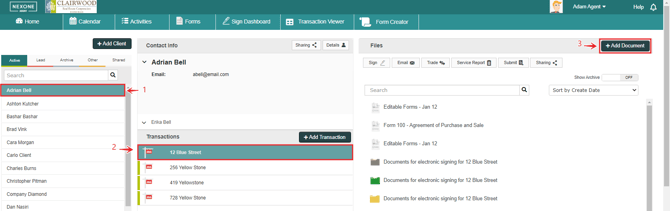
1. Click on your client.
2. Select Your transaction.
3. Then Add Document.
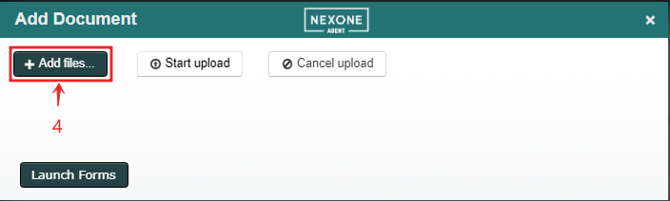
4. Click Add Files to upload documents from your computer.
A window from your computer will open. You can select the file from your computer where you have saved it.
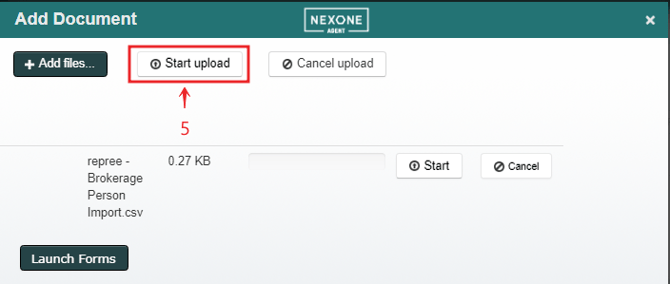
5. Click Start Upload to upload any files you've chosen from your computer. You can also click Start next to individual documents and upload them individually.
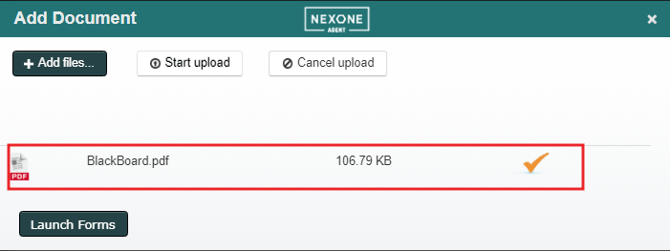
Completed uploads are displayed with an orange check mark.
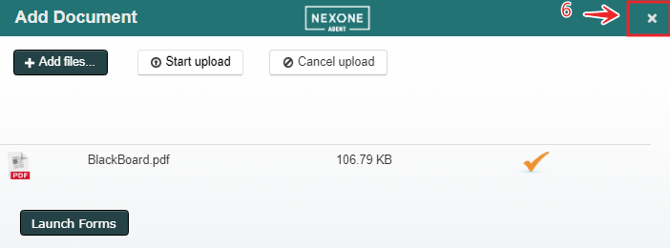
6. Close the Add Documents window and you will see your file in your Files list for that transaction.
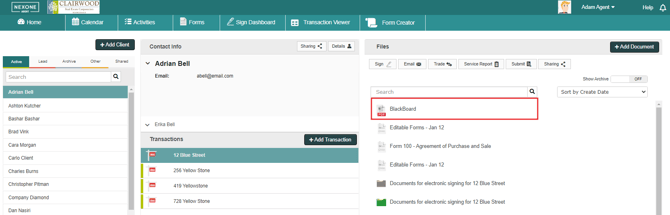
Back on your homepage.