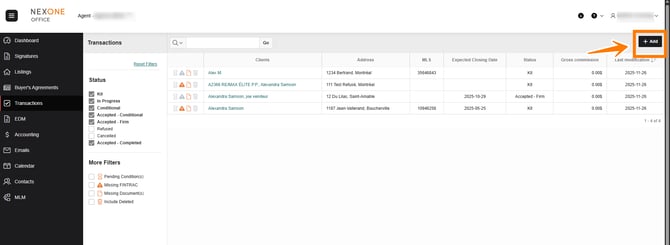
The Transactions section in NexOne Office (Lite Version) provides a streamlined way to track and manage all your transactions. To access a specific transaction, simply click on the property address, which will take you directly to the corresponding transaction file.
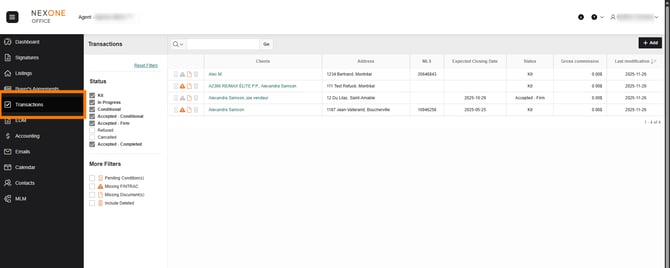
Filtering Transactions by Status
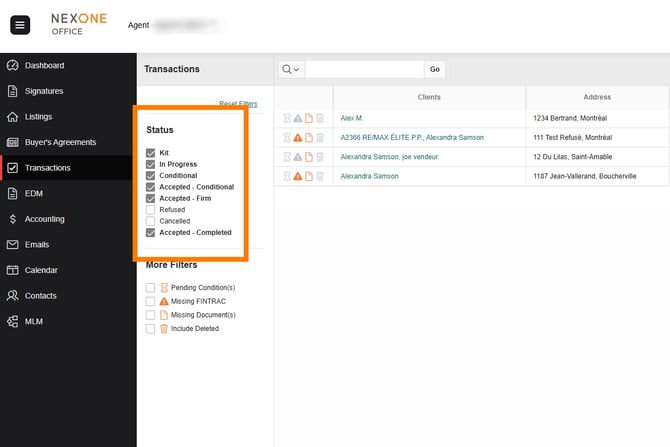
On the left side of the page, you’ll find the Status section, which allows you to filter transactions based on their current state:
-
Kit –Only visible to the agent
-
In Progress – Actively being worked on.
-
Conditional – Pending certain conditions.
-
Accepted - Conditional – Offer accepted but still conditional.
-
Accepted - Firm – Fully accepted, conditions met.
-
Refused – Transaction not approved.
-
Cancelled – No longer active.
-
Accepted - Completed - Transaction set to complete by the brokerage
Applying More Filters
Additional filters help you focus on specific transaction statuses:
-
Pending Conditions – Transactions with outstanding conditions.
-
Missing FINTRAC Documents – Transactions missing required FINTRAC documentation.
-
Missing Required Documents – Transactions that still need key documents.
-
Deleted Transactions – View previously removed transactions.
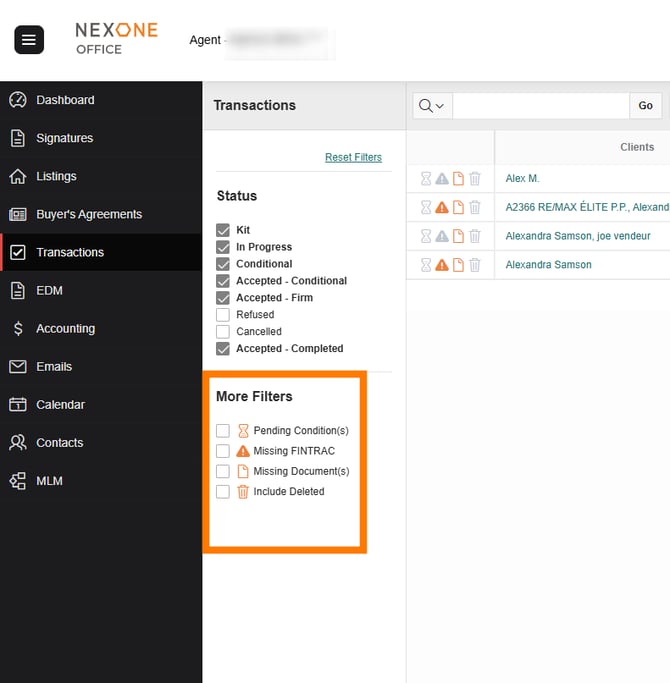
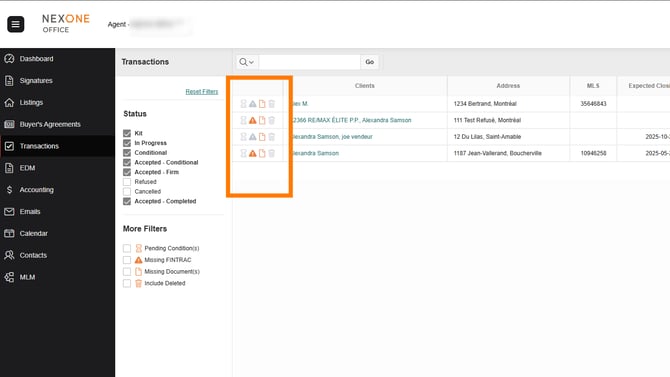
If any of these conditions apply to a transaction, the corresponding icon will appear in orange beside it.
Searching for a Transaction
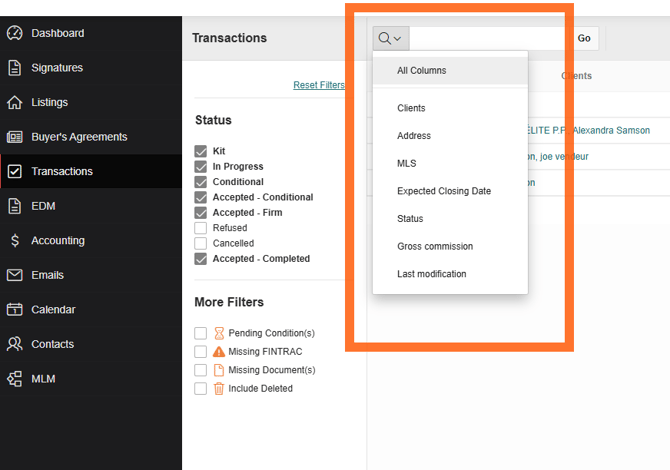
At the top of the page, use the Search filter to refine your results based on:
-
All columns
-
Address
-
Price
-
MLS number
-
Last modification date
Enter your search criteria and click GO or press Enter on your keyboard.
On the top right, you’ll find the Add button, where you can create a new Transactions file.