
Setup in NexOne
Open your agent profile in NexOne Office by clicking on your name in the top right corner.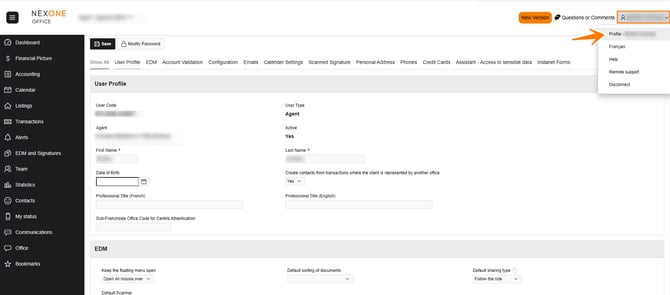
Make sure that the Instanet Forms section of your profile has a security key. If it is not the case, click on Build a New Secure key . Copy the security key. 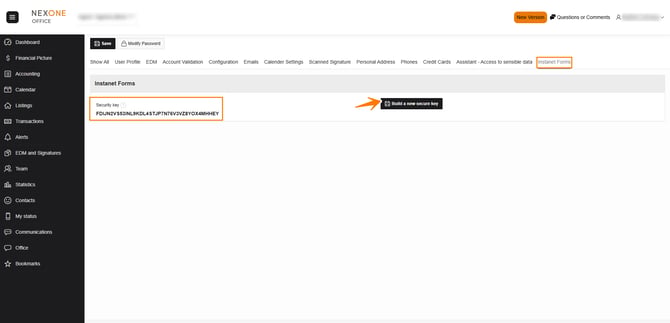
Setup in Instanet
Once you have copied the security key, go in your Instanet account and click on the icon "little character" in the upper right corner and then on setup.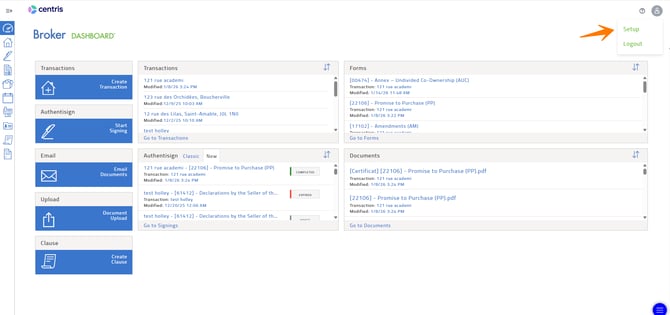
Select Integrations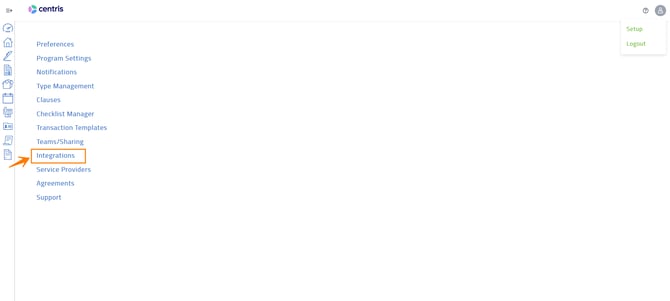
In Signature Settings
Click the box:Yes, I want to enable my account to use a third party signature vendor.
Select Vendor: NexOneSign
Paste User Key: the Security Key you copied in NexOne Office
Click Update
Repeat the process in Document Settings
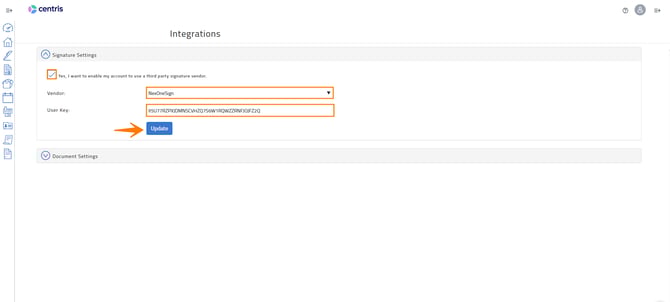
Once you have completed these steps, your NexOne Office account will be linked with your Instanet account.
Sending from Instanet to NexOne
In the transaction, click Forms
To populate the information from Centris click on the 3 dots beside the form. An F will appear telling you the document is Finalized.
It is important to finalize the documents before sending them into NexOne Office. If you forget this step, the system will not allow you to proceed.
Once they are ready for signatures, click on the circle to select the documents, followed by the basket icon.
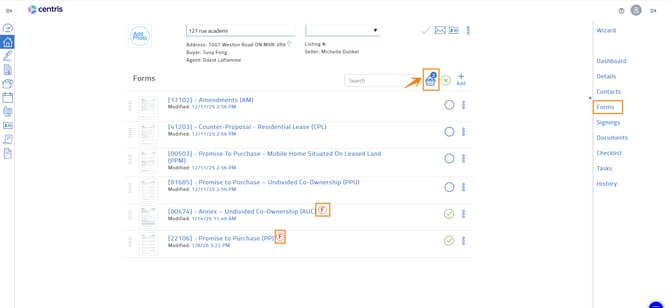
A new window will appear. Click on the pen with an arrow to send to NexOne Office. 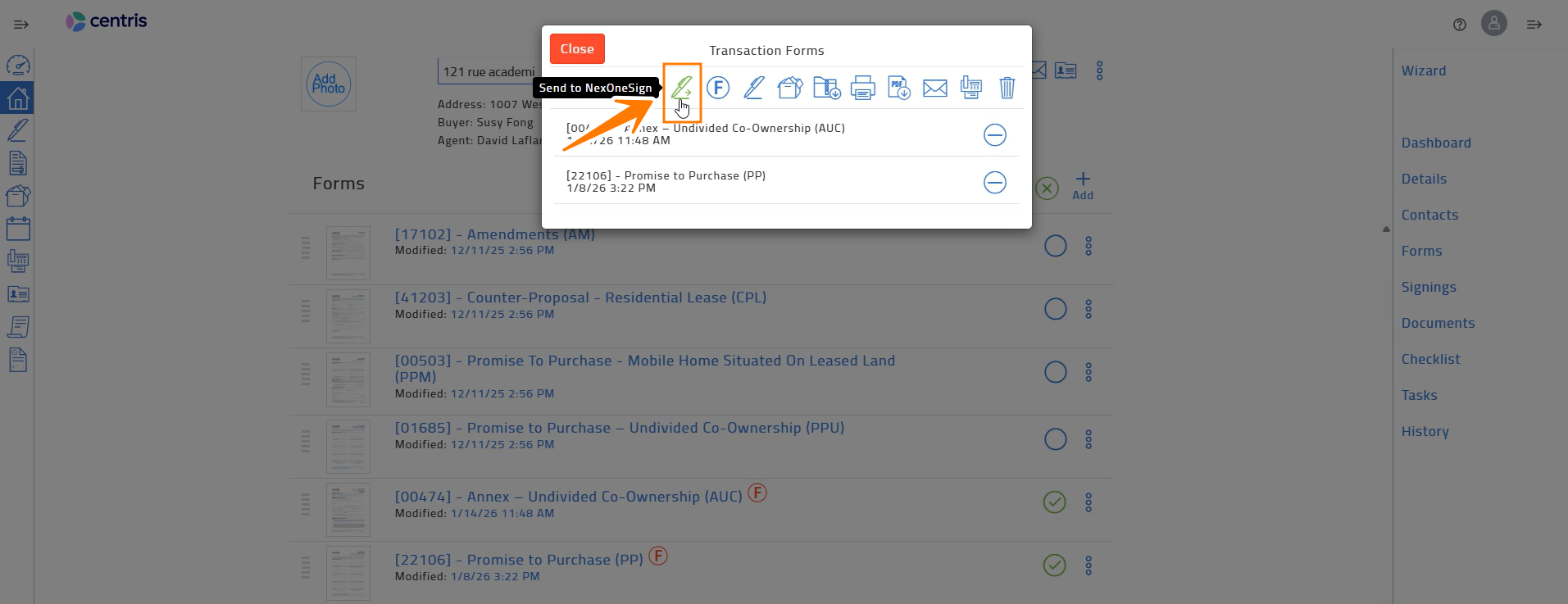
If NexOne Office account doesn’t open, check your browser for pop-up blockers.
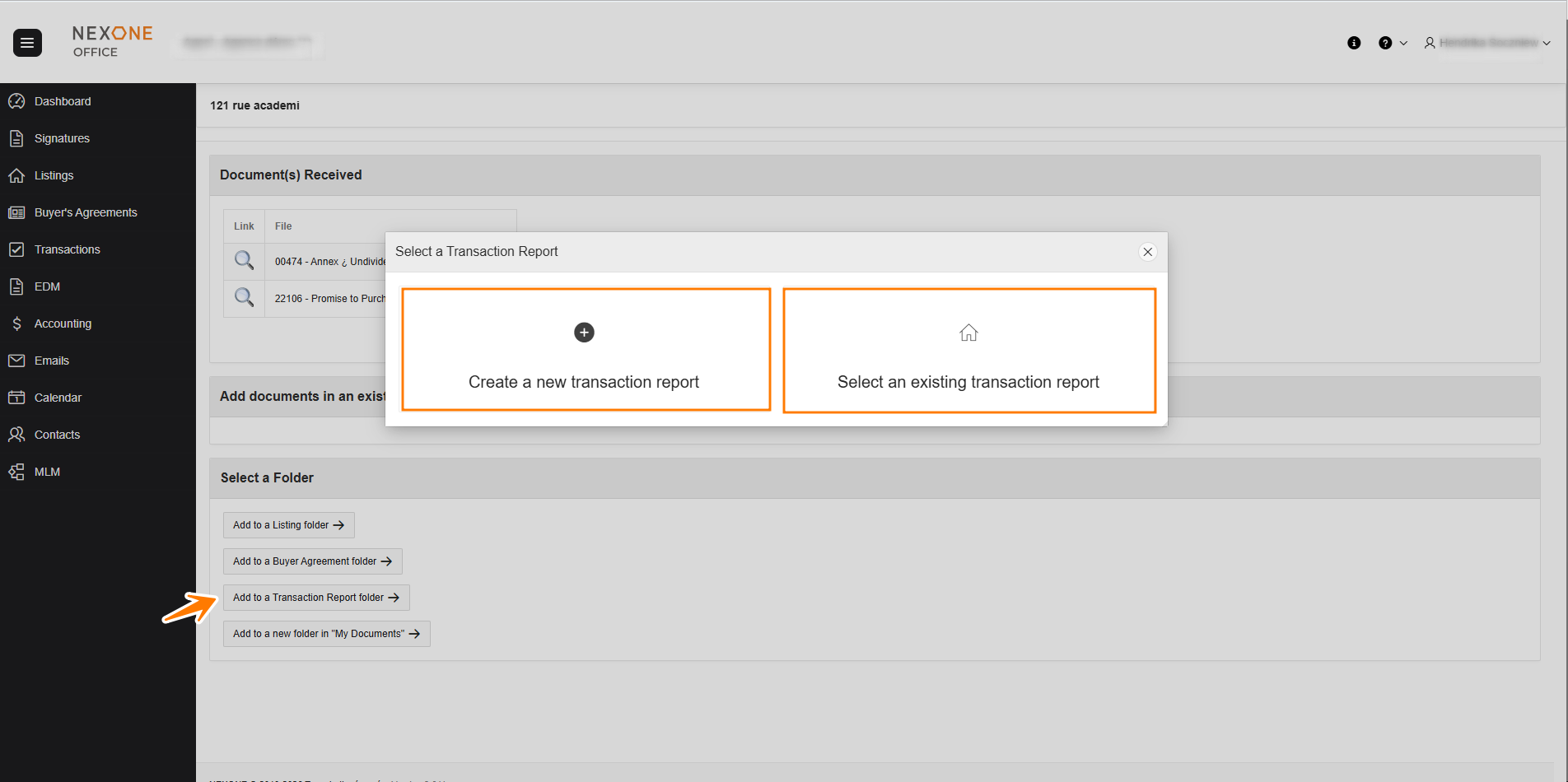
Select a folder to add your documents to.
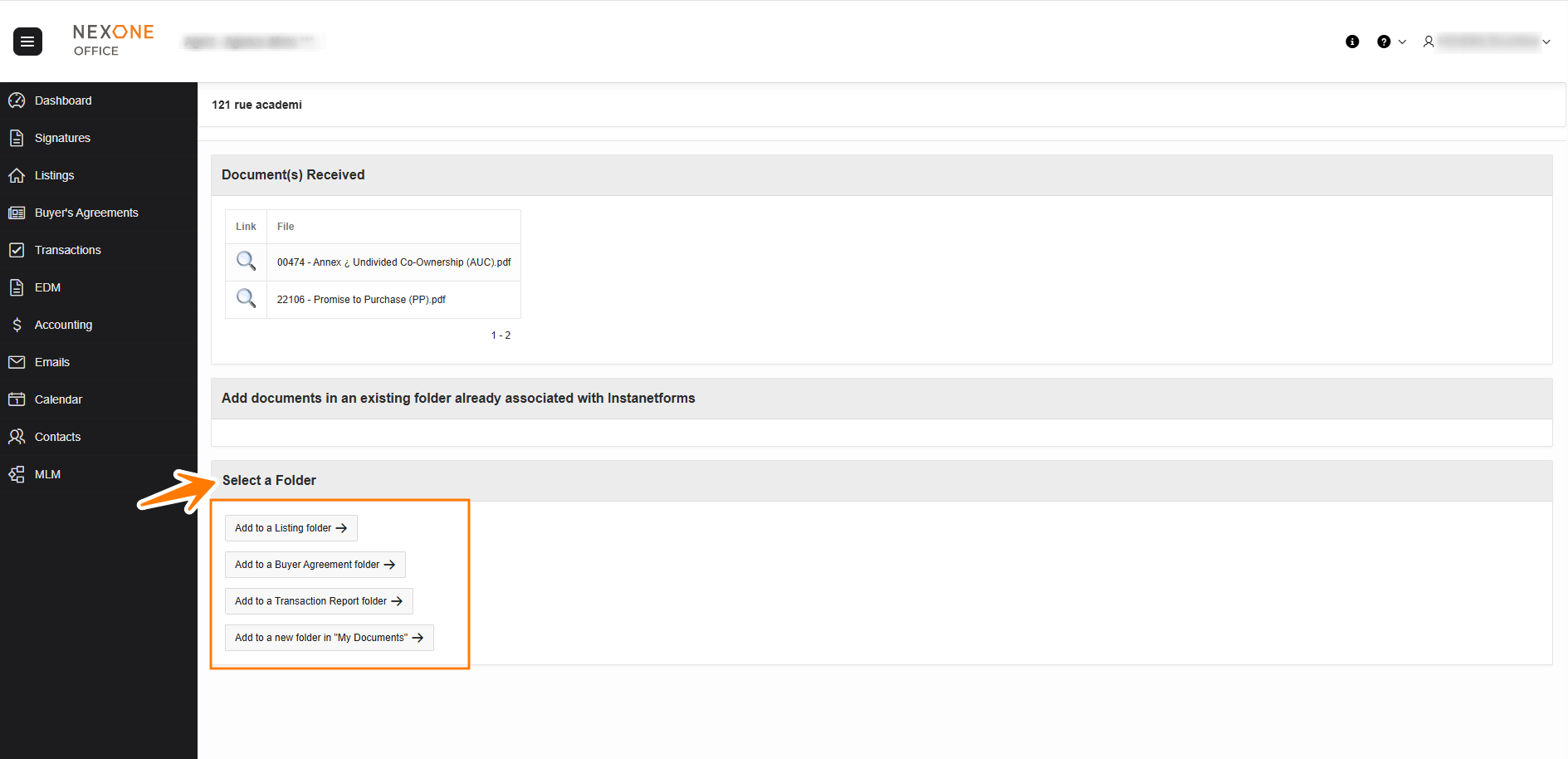
When you select:
Add to a Listing folder
Add to a Buyer Agreement folder
Add to a Transaction Report folder
You can choose an existing folder or create a new one.
With Add to a new folder in “My Documents”: you can complete the necessary fields and save these documents in a specific folder.
All documents sent from Instanet will then be deposited into your EDM.
Completed!