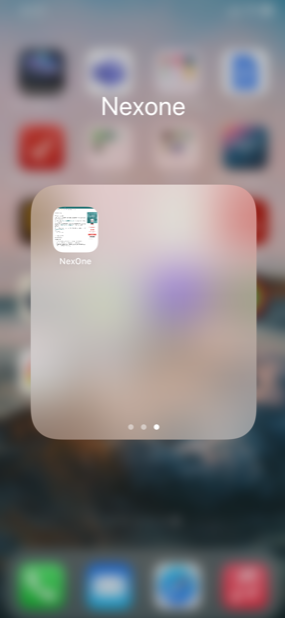
Follow these steps for quick access to your NexOne account. You can save it under a desktop view on your mobile device for a more comfortable way to work.
Please be advised that the steps below were created using an iPhone.
- Open your Safari app and enter Nexone.ca
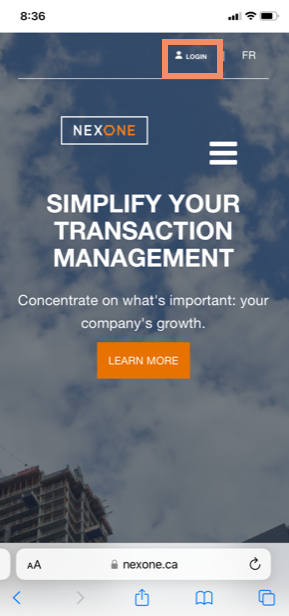
2. Select Log In
- From here you can choose 2 different views
- Mobile
- Desktop
Mobile:
- Enter your login information
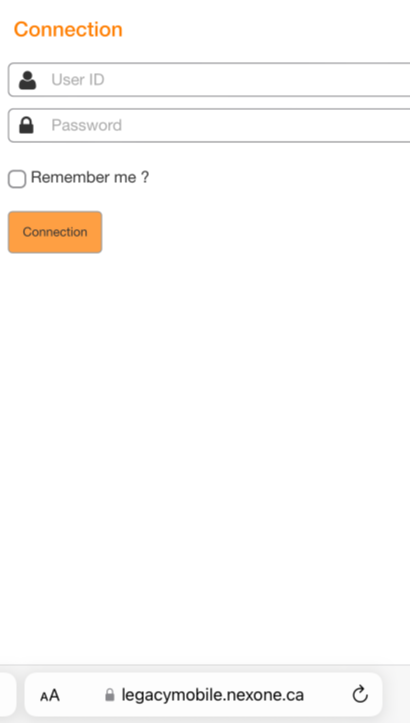
Navigate through our mobile view
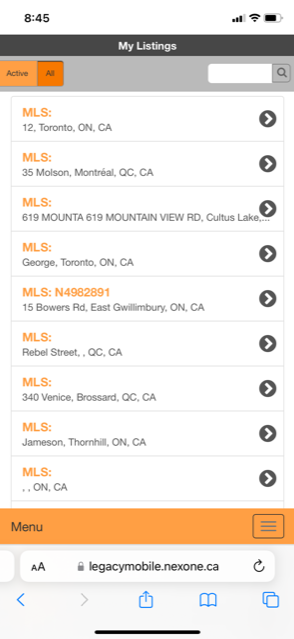
Follow the Save NexOne to your Mobile Home Screen at the bottom of this page to add NexOne to your device.
Desktop View:
- Touch the keyboard
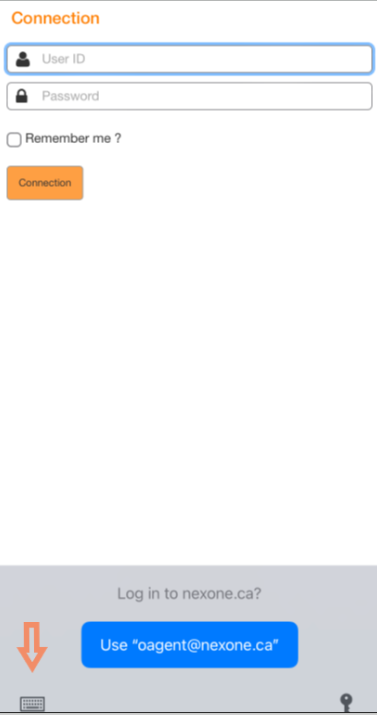
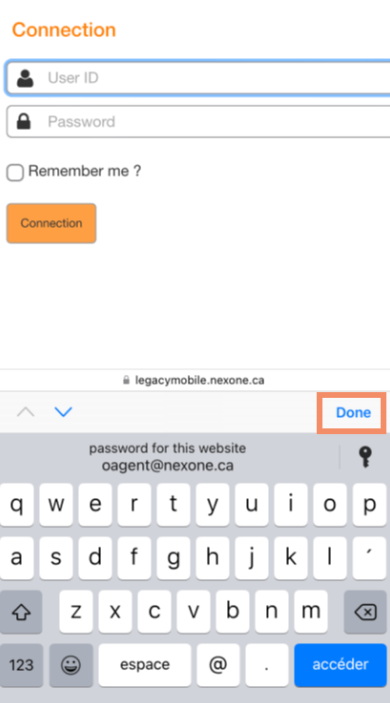
2. Select Done without entering your credentials
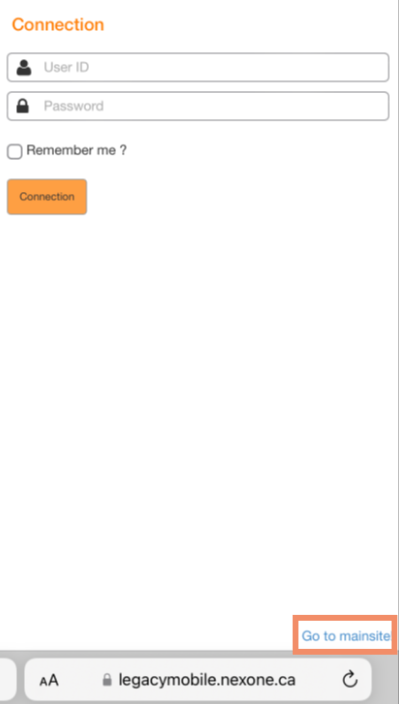
3. On the bottom right of your screen, select Go to Mainsite
3. Enter credentials or use auto-fill
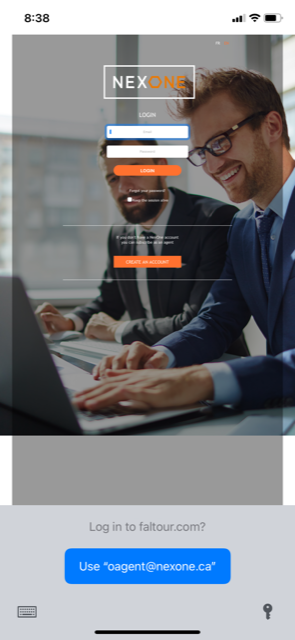
Save NexOne to your Mobile Home Screen
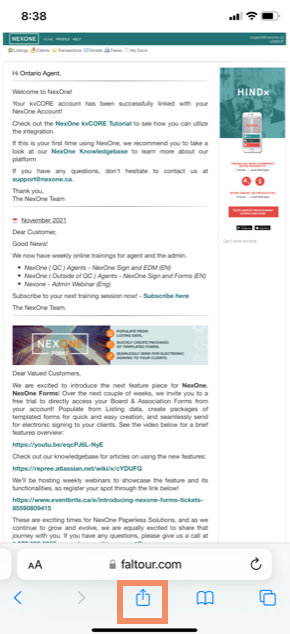
- Open the share icon at the bottom of your page.
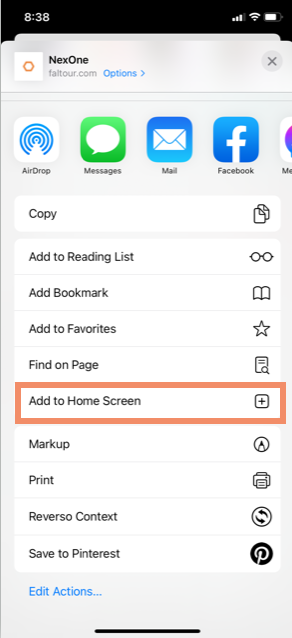
2. Select Add to home Screen
3. You can modify the icon name or leave it as NexOne and select Add
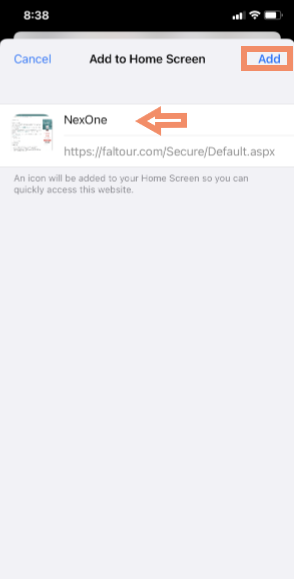
4. Your NexOne Home Screen link has now been created