
-
Download the File
-
Open your email and locate the email containing the file.
-
Download the attached file to your computer.
-
-
Open the File in Excel
-
Locate the downloaded file on your computer.
-
Double-click the file to open it in Microsoft Excel.
-
-
Select Column A
-
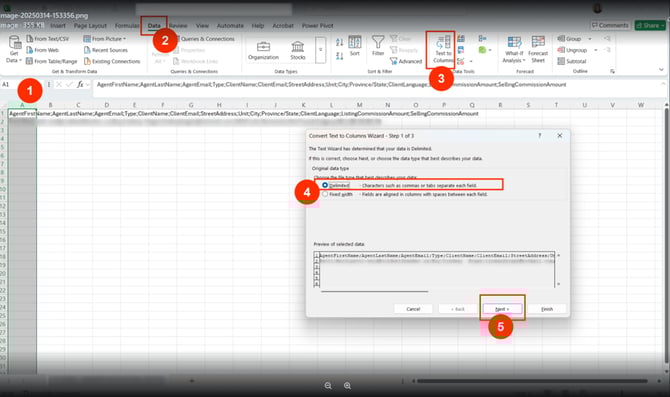
Click on the letter A at the top of the column to select the entire column.
-
-
Use the "Text to Columns" Feature
-
Go to the Data tab in the Excel ribbon.
-
Click on Text to Columns.
-
-
Choose the Delimited Option
-
When the Convert Text to Columns Wizard appears, select Delimited.
-
Click Next.
-
-
Select the Delimiter
-
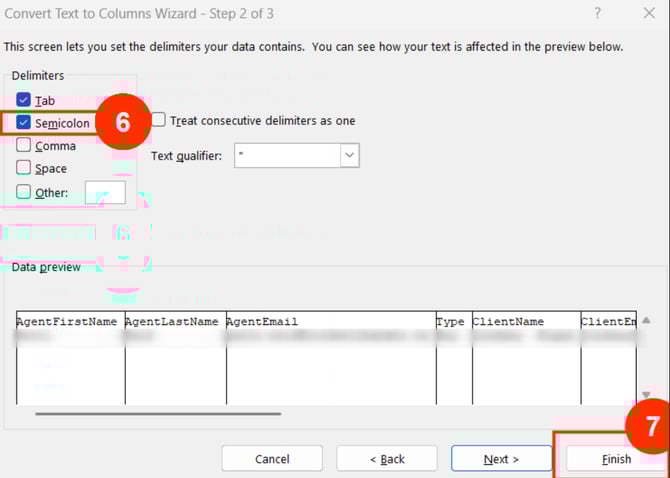
In the Delimiters section, check Semicolon ( ; ).
-
A preview will appear, showing the data split into separate columns.
-
-
Complete the Process
-
Click Finish to apply the changes.
-
-
Delete Unnecessary Columns
-
Select columns L and M by clicking on their headers.
-
Right-click and select Delete.
-
Now, your file is ready to be added to the 121QA service