
When sending your client documents. You can add a password requirement upon receiving them.
Follow these 4 easy steps:
-
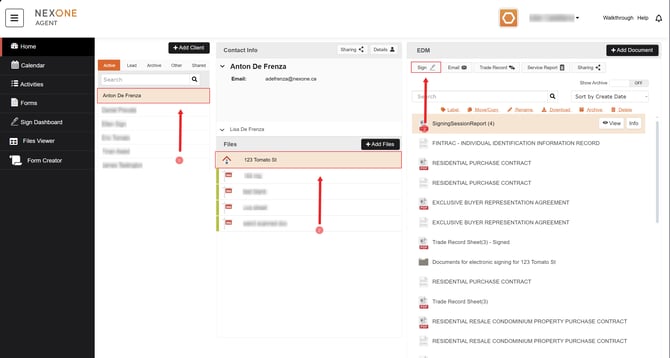
After selecting your client and transaction file, click Sign.
-
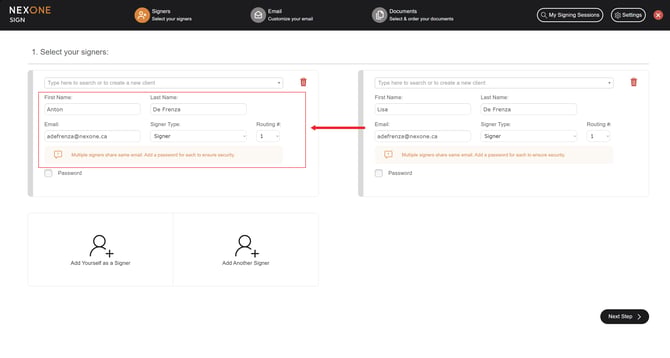
Make sure your signer's name, email, and signer type information are correct.
-
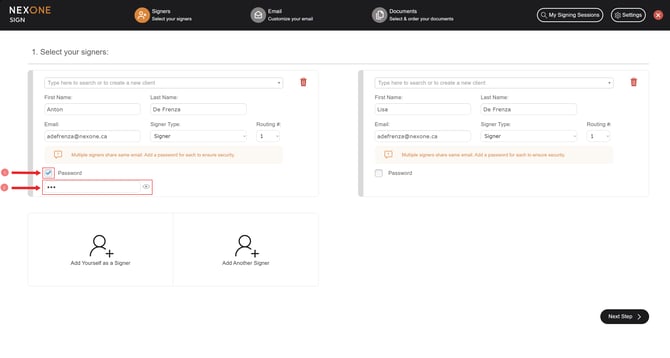
Check the password box and enter a password of your choosing, then click Next Step.
-
Complete the signing session as you normally would.
Once your client receives their signing session email, they must first enter the password you have provided to them, then select "I agree to sign electronically".
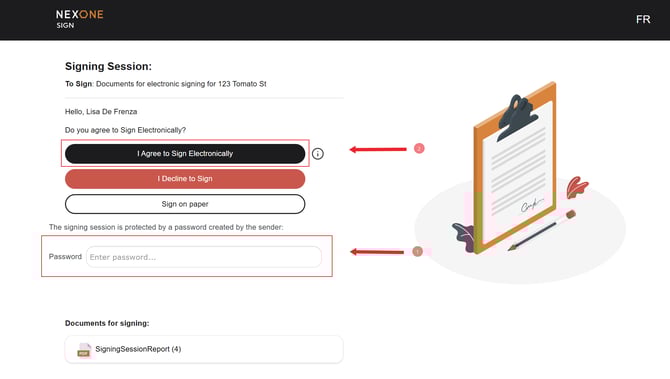
If your client is unable to enter the password correctly, you will need to delete the signing session and start a new one. Your client must receive the correct password.
Tips: Have your client create their own password or copy and paste the password you’ve created and send it to them by email.