
Workflow: Managing Deals in NexOne Agent and Syncing to LoneWolf
1️⃣ Activity Creation
-
The administrator creates activities in NexOne Agent for each transaction type (e.g., listing, sale, lease).
2️⃣ Assigning Reviewers
-
Reviewers (e.g., compliance officers, admin staff) are assigned to these activities to oversee document review and approval.
3️⃣ Agent Submits to Office
-
The agent selects the activities and uploads the required documents into the appropriate activities.
-
The agent clicks Submit.
-
⚠ Note: If the brokerage requires property information before submission:
-
The agent will be blocked from submitting.
-
The system will prompt the agent to fill in the missing property details.
-
Once completed, the agent can submit the selected documents.
-
4️⃣ Admin Review in File Viewer
-
All submitted documents appear in the File Viewer.
-
Admins and assigned reviewers:
-
Review the documents.
-
Approve or Reject as needed based on compliance checks.
-
5️⃣ Using Labels
-
Admins can apply labels (for internal tracking) in the trade records such as:
-
✅ Ready to process
-
⏳ Do not sync to LoneWolf
-
📌 Requires revision
-
This is configured under My Brokerage
6️⃣ Sync to LoneWolf
-
Once the deal is ready:
-
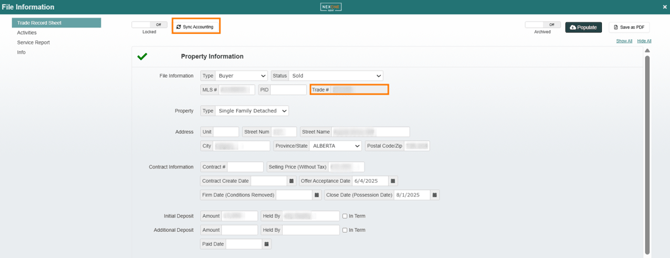
The admin clicks Sync at the top of the trade record.
-
If there are errors during sync, they will display as a pop-up.
-
7️⃣ Locking the Trade
-
After successful sync:
-
The admin can lock the trade to prevent the agent from making further changes in NexOne Agent.
-
8️⃣ Confirming Sync
-
A successfully synced trade will display the LoneWolf trade number at the top of the trade record (under Property Information).
Initial Setup
-
NexOne will configure LoneWolf as the back-office system.
-
The brokerage provides the integration number to link the systems.
Integration Settings (NexOne Agent > My Brokerage > Integration):
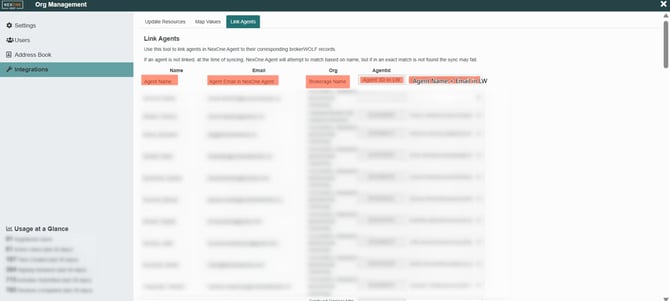
1️⃣ Link agents to sync with LoneWolf.
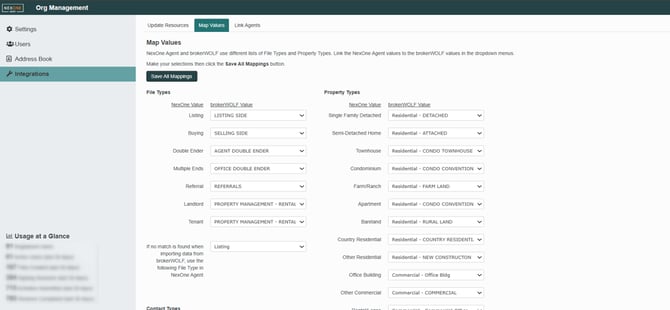
2️⃣ Map values:
-
Link NexOne values to LoneWolf (brokerWOLF) values using the dropdowns.
-
Example:
-
NexOne value = Listing
-
BrokerWOLF value = Listing Side
-