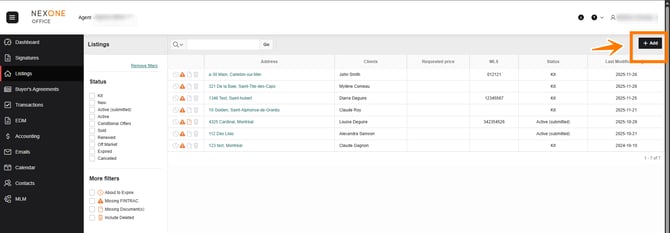
The Listing section in NexOne Office provides a comprehensive view of all your listings in one place. To access a specific listing, simply click on the property address, which is a hyperlink that will take you directly to the corresponding folder.
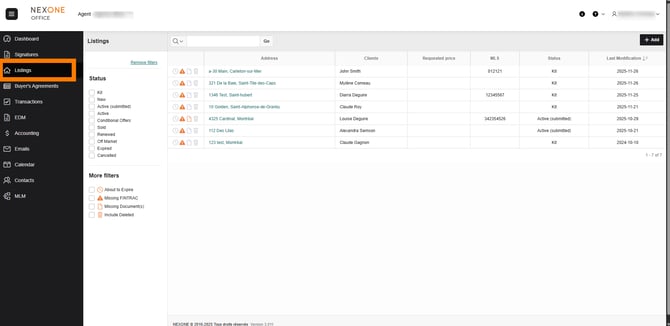
On the left side, you’ll find the Status section, allowing you to filter listings based on their current state, including:
-
Kit
-
New
-
Active (Submitted, Active, Conditional Offers, Sold, Renewed, Off Market, Expired, or Cancelled)
.jpg?width=670&height=334&name=image%20(1).jpg)
You also have the option to clear your filters and start a new search by clicking on Remove Filters
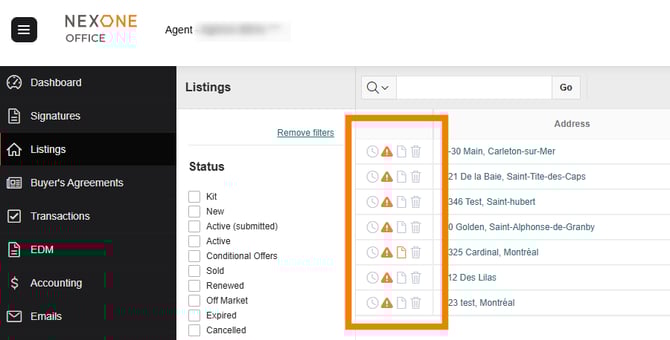
In the More Filters section, you’ll find additional filtering options with icons that help you focus on specific listing statuses, such as:
-
Listings about to expire
-
Missing FINTRAC documents
-
Missing required documents
-
Deleted listings
.png?width=670&height=336&name=image%20(14).png)
If any of these conditions apply to a listing, the corresponding icon will appear in orange beside it.
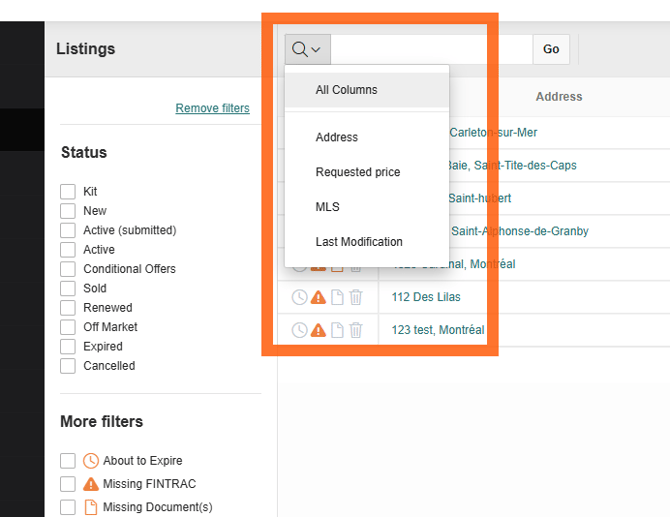
 At the top of the page, the Search filter allows you to refine your results using criteria such as:
-
All columns
-
Address
-
Requested price
-
MLS number
-
Last modification date
Once your choice has been made the criteria has been entered in the above section, click on GO or Enter on your keyboard
On the top right, you’ll find the Add button, where you can create a new Listing file.