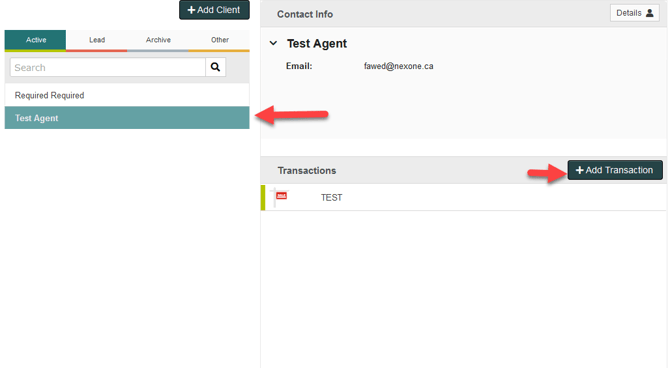
1. After logging into NexOne Agent, Select a Client, then Select a Transaction
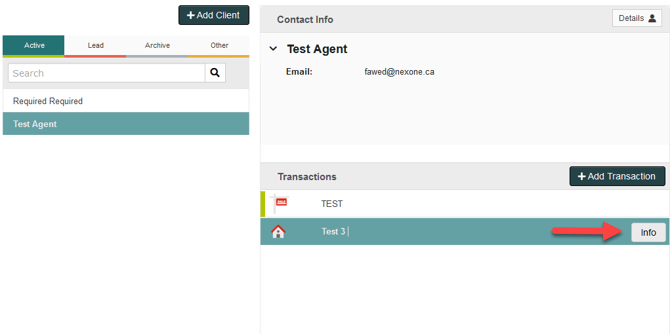
2. Once your mouse is over the selected Transaction, Select the Info option located to the right of the Transaction name
3. While in your Transaction Info menu, select the Link Listing/Link Buyer Transaction option under the status section
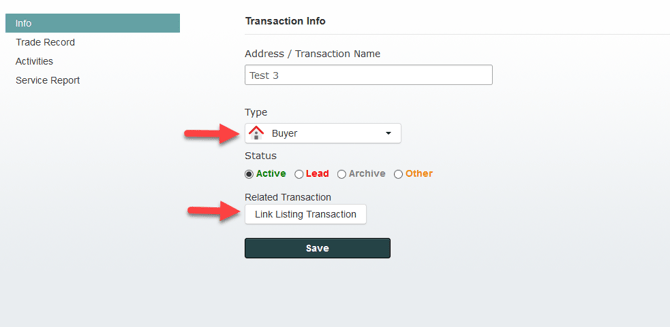
Please note that you can only link a Buyer status transaction to a Listing status transaction and vice versa. If you have Marketing selected as your transaction status, you will not be able to link that transaction. The same applies if you want to link transactions that have the same status.
4. In the Link Transaction menu you can either select an existing Client and Transaction or Create a brand New Client and a brand New Transaction. In this case, we will select an existing transaction
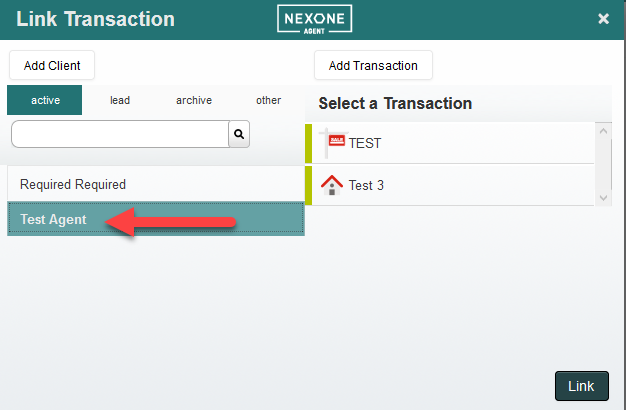
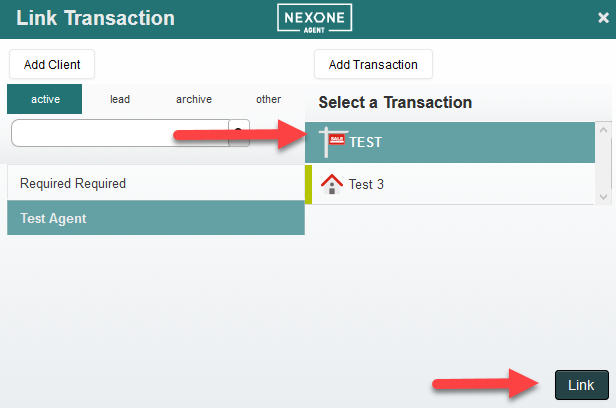
5. Make sure the transaction you want to link is selected and then Click on the Link option to the bottom right hand side of the Link Transaction menu
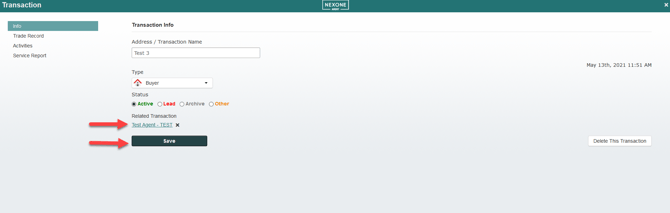
6. You will be redirected to your Transaction Info menu where you can see your newly added Related Transaction. You can then save the changes by clicking on the Save button located under the related transaction