
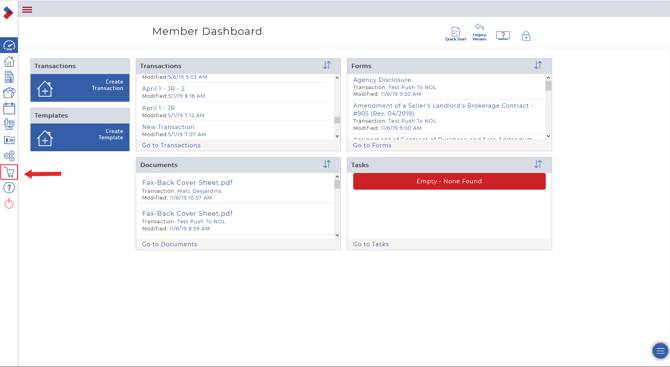
1. After logging into your Webforms 2019 account, select the shopping cart icon, to the left hand side of your page, to be redirected to the Apps store
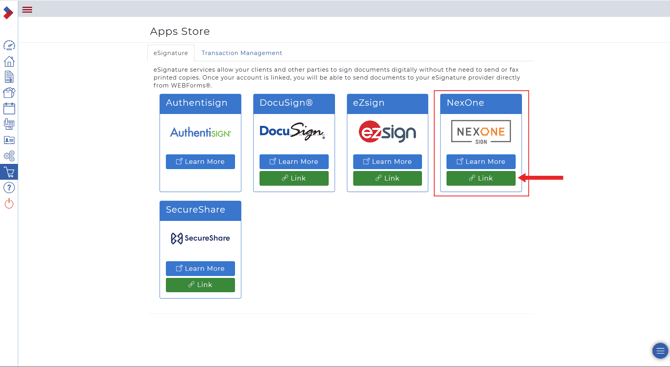
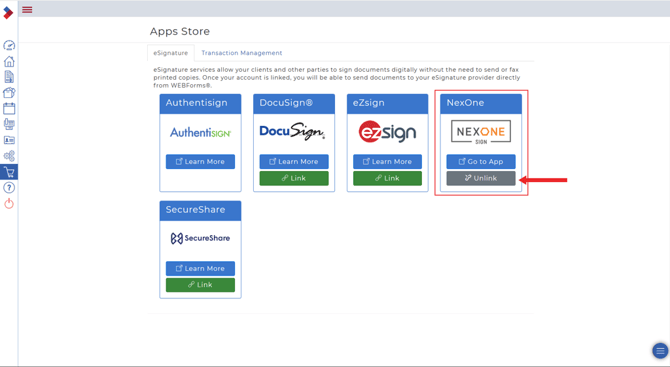
2. Under the eSignature section, find the NexOne logo and click on the green Link button located underneath it
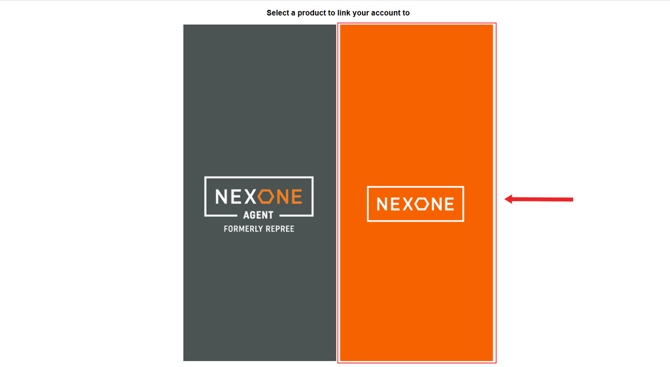
3. Select the orange “NexOne” option
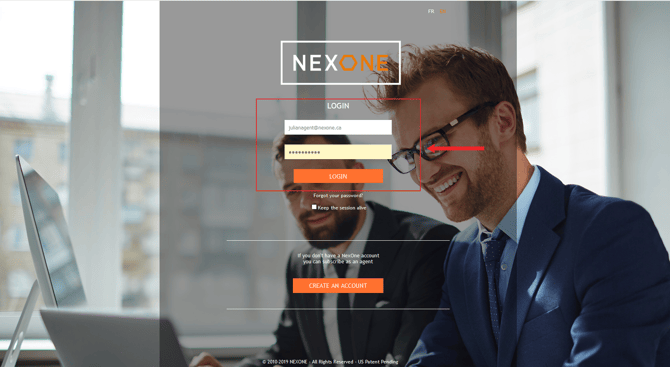
4. Fill in your NexOne Legacy credentials
5. You should be redirected to the Webforms 2019 website and the Link option under the NexOne logo should now be grayed out and it should now say Unlink. The accounts are now linked
Unlink NexOne Legend from Webforms
1. After logging into your Webforms 2019 account, select the shopping cart icon, to the left hand side of your page, to be redirected to the Apps store
2. Under the eSignature section, find the NexOne logo and click on the gray Unlink button located underneath it
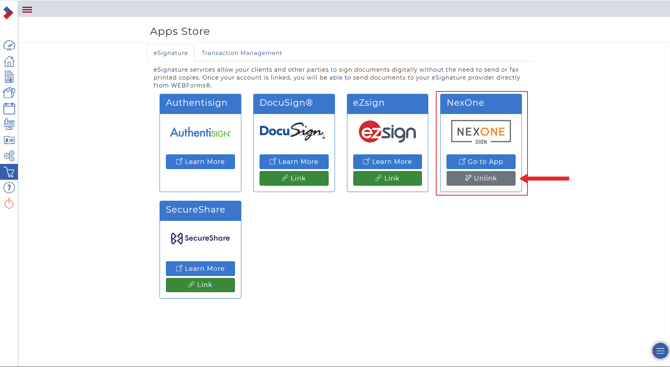
3 The Unlink option under the NexOne logo should now be green and it should now say Link. The accounts have now been unlinked
Wondering what comes next? Follow these steps https://nexone.atlassian.net/l/c/T6CXE14H