
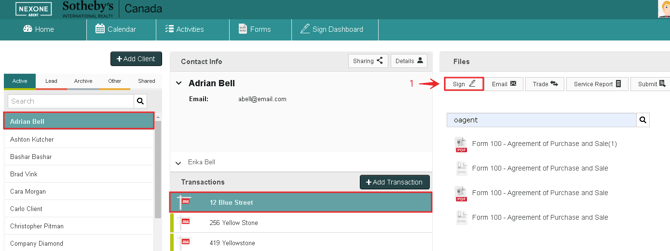
-
Choose your client and your transaction, then click on Sign
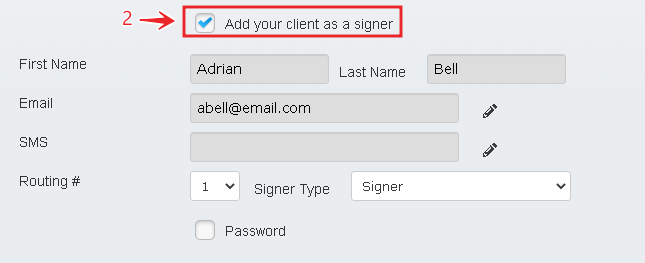
2. Add your client as a signer
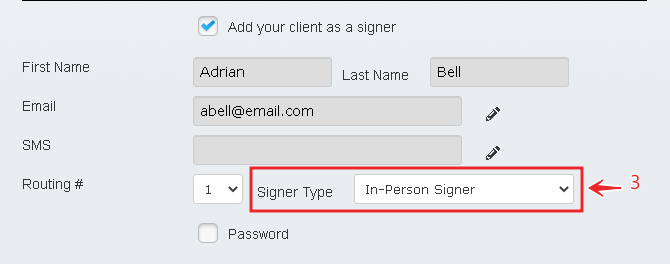
3. Change your Signer Type to: “In-Person Signer”
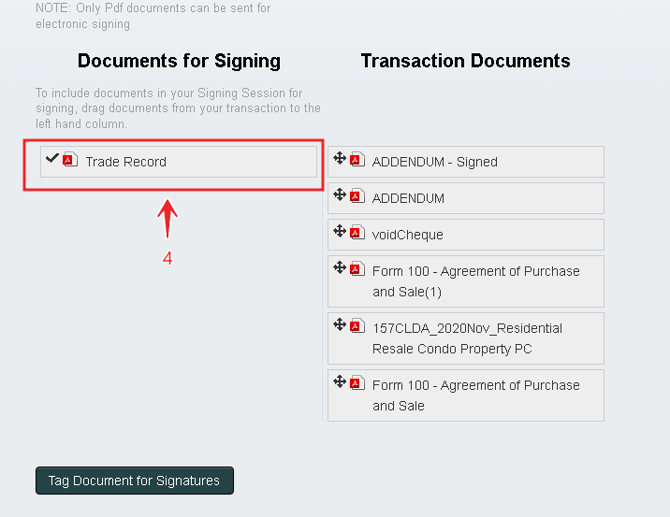
4. Drag a document from the Transaction documents column to the “Documents for Signing”
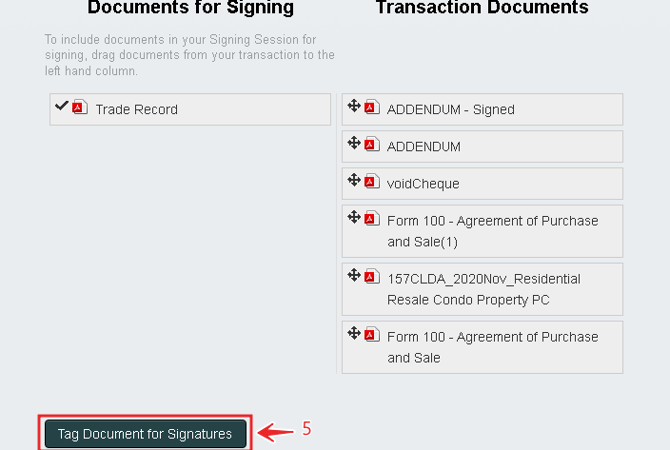
5. Click on “Tag Document for Signatures”
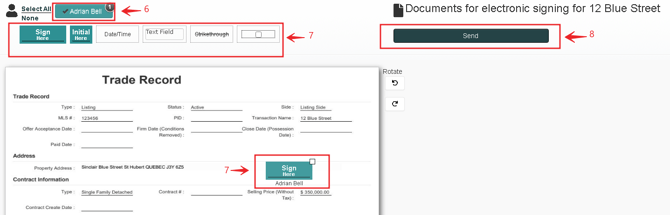
6. Select the Signer
7. Drag your necessary tags
8. Then send the document for electronic signing
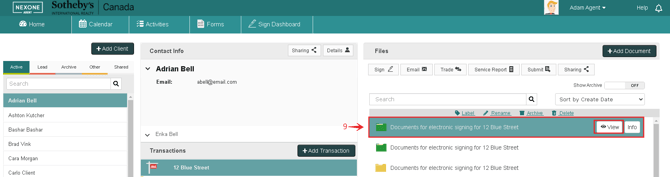
9. Once again in the home page, select view to the right of your signing session
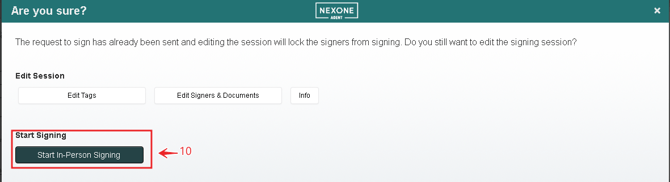
10. Click on “Start In-Person Signing”
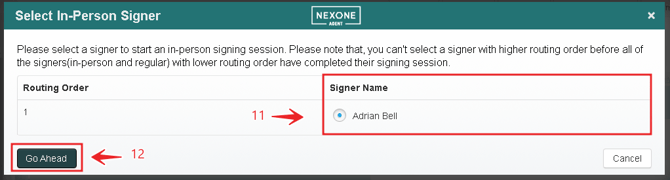
11. Select your Signer
12. Click on “Go Ahead”

13. Proceed with “Start Signing”
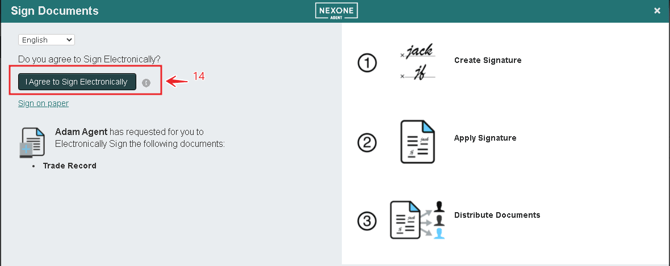
14. Click on “I Agree to Sign Electronically”.
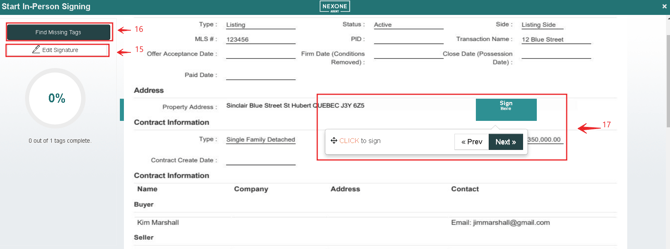
15. Verify and select your Signature and Initials
16. Start Signing
17. Click in each required element as needed
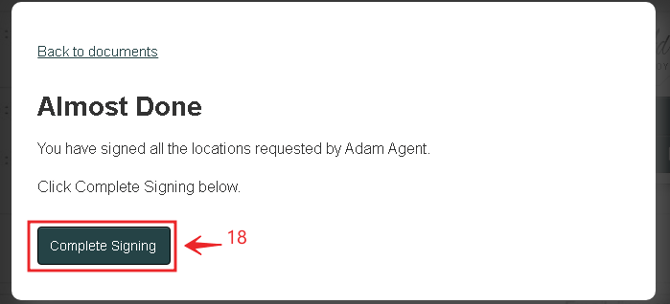
18. Select “Complete Signing”
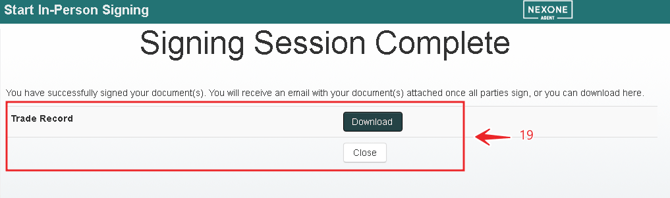

19. The signing session is now Done. You can press on “Close” and go to the home page or download the In-Person Sign document.