
It is possible to Link or Unlink a Client File with a Listing. There are 2 methods to do so:
From the Client File
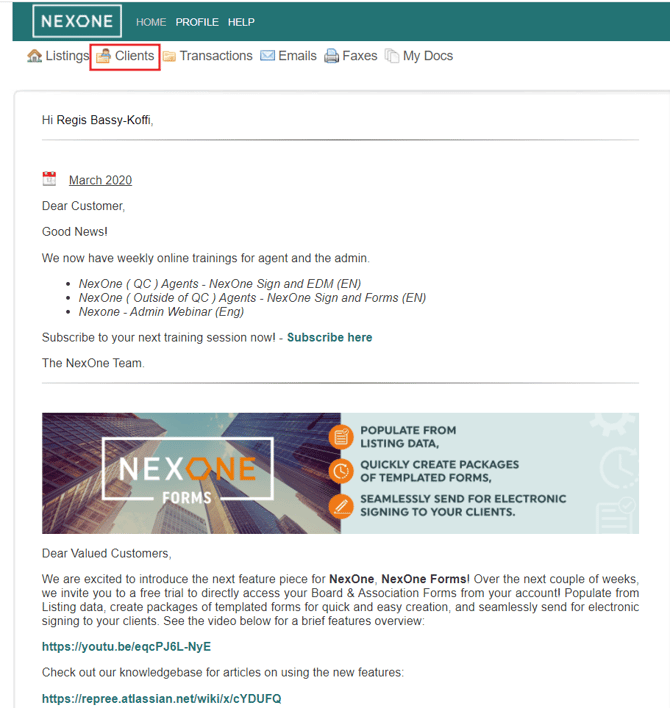
- Click on Clients
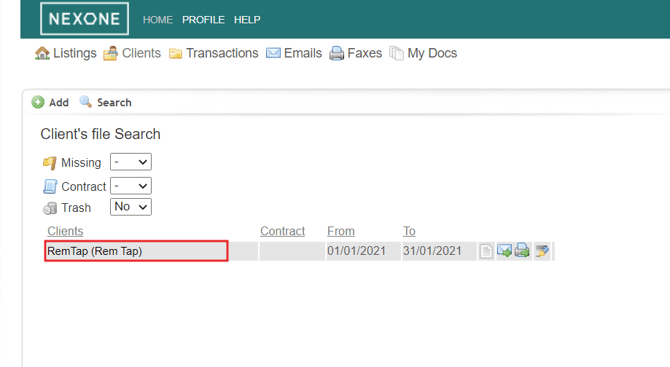
2. Select the Client file you want to link by clicking on the name
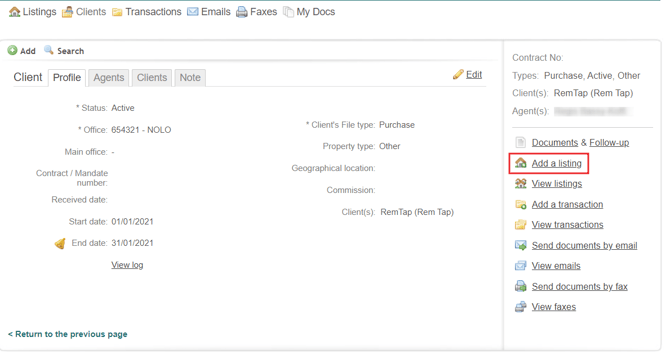
3. Click on Add a listing
4. You will be redirected to the page to create a new listing. Fill out the fields like you were creating a new listing and save.
5. On the client file profile, click on View listings to see the linked listing.
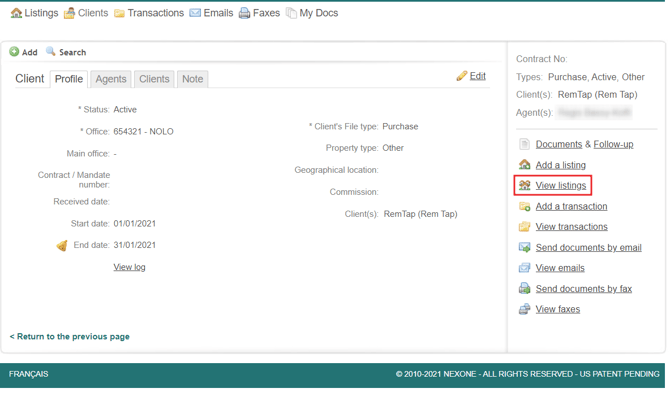
6. You can see the listing that has just been created in the list, that means the listing and the client file are linked
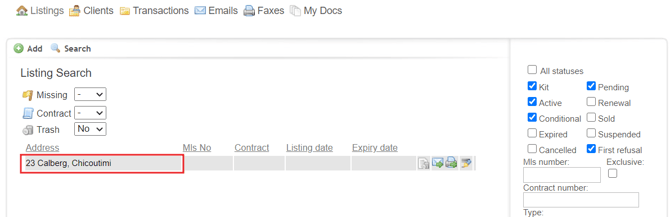
From an existing Listing
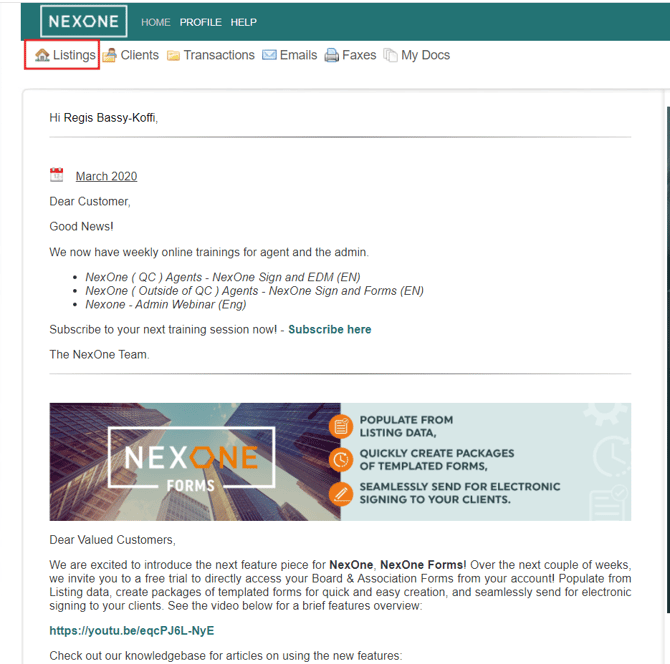
- Click on Listings
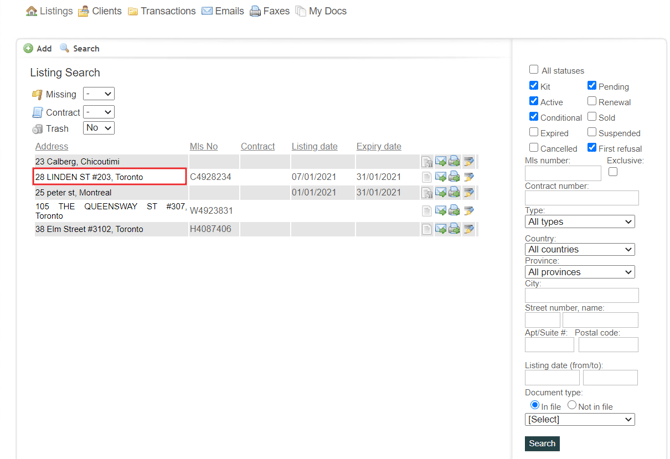
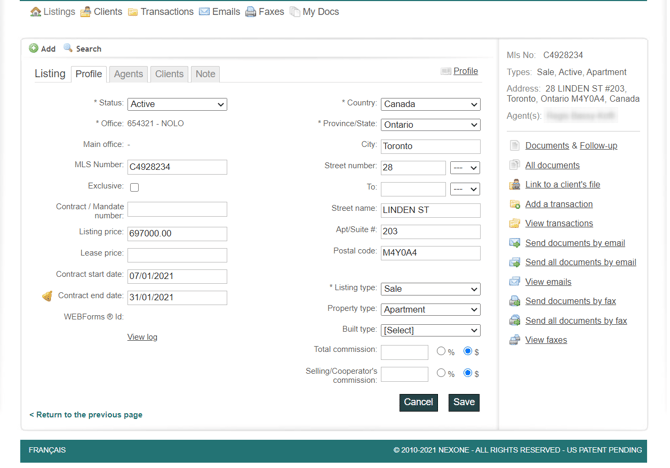
2. Open the listing by clicking on the address
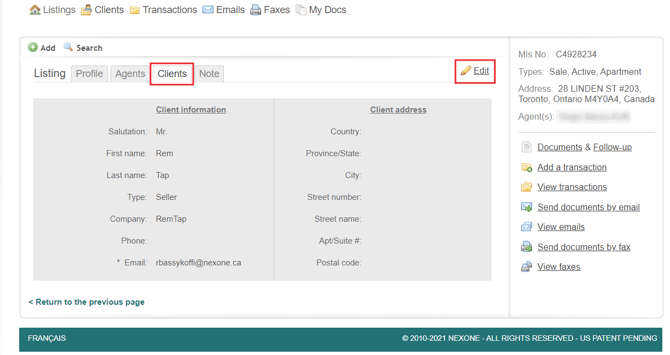
3. Go to the Clients section of the listing, click on Edit
4. Enter your client’s information and click on Link to a client’s file
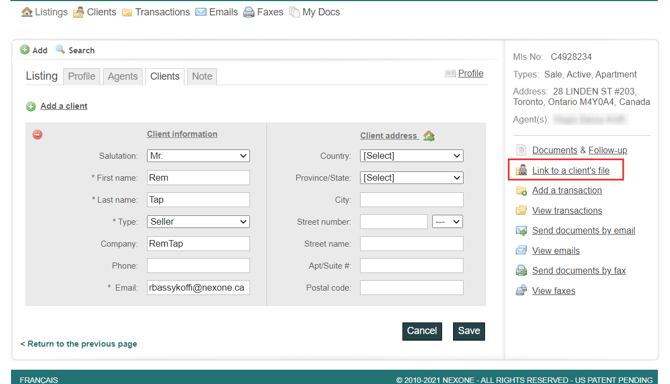
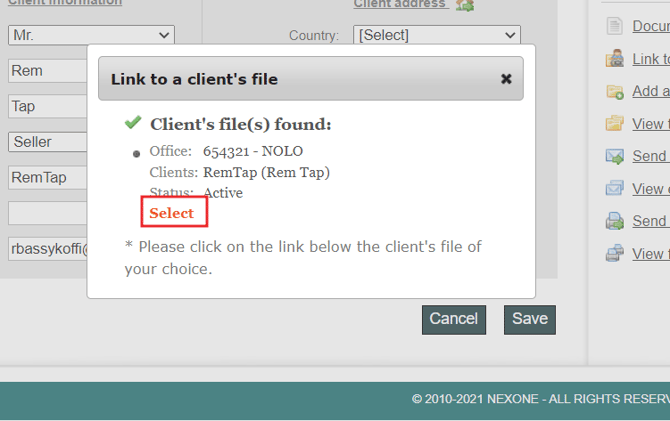
5. You will see the client file that has the same information as the client entered in the listing and you can then select it.
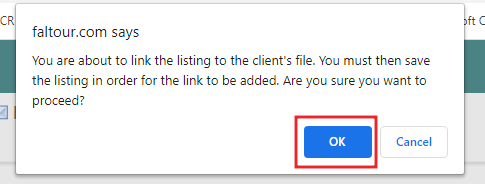
6. You might see a confirmation message to let you know that you are about to link the client file and the listing; press OK
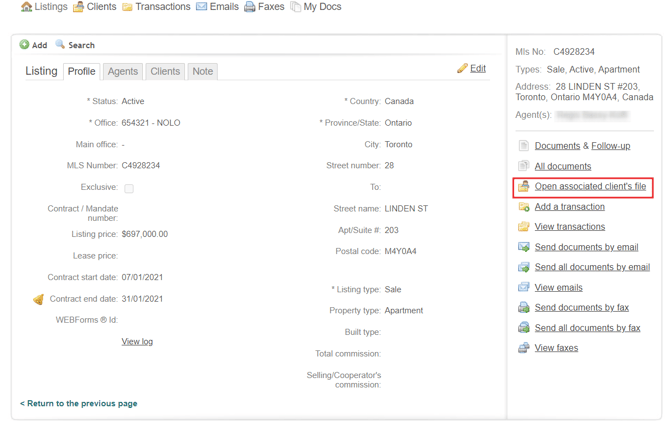
7. The link will be established. To open the associated client file, you can click on Open associated client’s file
You have to make sure that the client information in the listing is exactly the same as the client information in the client file. If not, the system won’t be able to find the client’s file to link to.
It is possible for a client’s file to be linked to more than one listing at the same time.
Unlink a client’s file and a listing
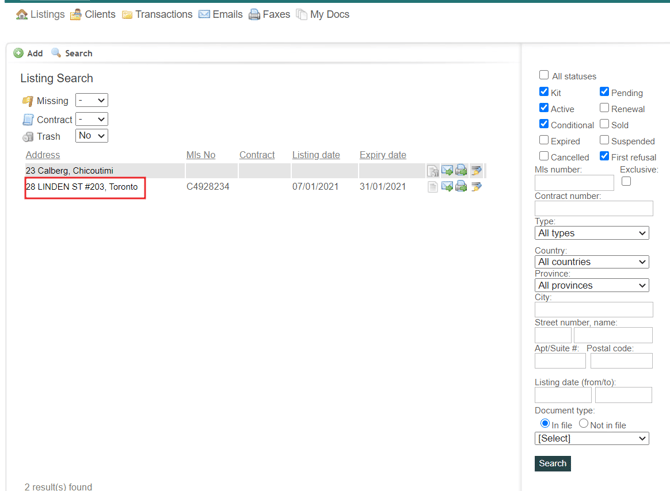
- Open the listing that you want to unlink by clicking on the address
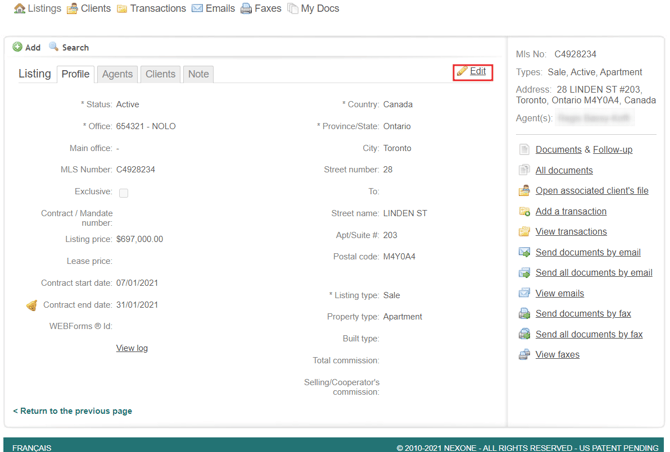
2. Click on Edit
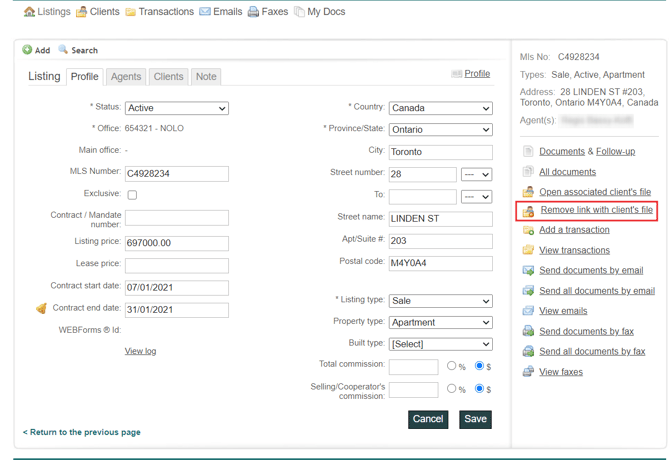
3. Click on Remove link with client’s file
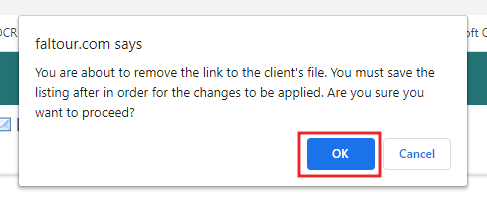
4. You might see a confirmation message to let you know that you are about to unlink the client file and the listing. Press OK and the files will be dissociated.
5. To make sure that the link has been removed, notice that the option Remove link with client’s file is replaced by Link to a client’s file
Completed!