---
title: How to add an unlisted Agent that belongs to your Brokerage (if the search bar drop-down is not working)
description: How to add an unlisted Agent that belongs to your Brokerage (if the search bar drop-down is not working)
---
[Skip to content](https://knowledge.nexone.ca/en-ca/how-to-add-an-unlisted-agent-that-belongs-to-your-brokerage-if-the-search-bar-drop-down-is-not-working#main-content)
English - Canada
Show submenu for translations
[](https://knowledge.nexone.ca/en-ca?hsLang=en-ca)
- [NexOne Agent](https://knowledge.nexone.ca/en-ca/nexone-agent)
- [NexOne Office](https://knowledge.nexone.ca/en-ca/nexone-office)
- [NexOne Legend](https://knowledge.nexone.ca/en-ca/nexone-legend)
Open main navigation
Close main navigation
- [NexOne Agent](https://knowledge.nexone.ca/en-ca/nexone-agent)
- [NexOne Office](https://knowledge.nexone.ca/en-ca/nexone-office)
- [NexOne Legend](https://knowledge.nexone.ca/en-ca/nexone-legend)
- English - Canada
Show submenu for translations
- [Free Webinars](https://nexone.ca/)
[Free Webinars](https://nexone.ca/)
How can we help you?
- There are no suggestions because the search field is empty.
1. [NexOne](https://knowledge.nexone.ca/en-ca?hsLang=en-ca)
2. [NexOne Legend](https://knowledge.nexone.ca/en-ca/nexone-legend?hsLang=en-ca)
3. [Office & Employees](https://knowledge.nexone.ca/en-ca/nexone-legend?hsLang=en-ca#office-employees)
June 23, 2026
# How to add an unlisted Agent that belongs to your Brokerage (if the search bar drop-down is not working)
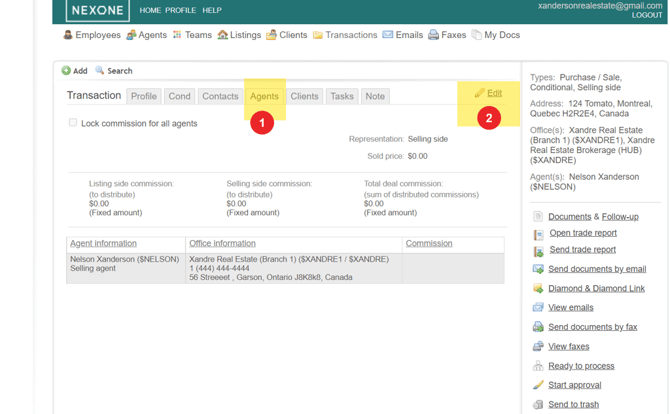
Step 1.
Once you have created your Listing or Transaction, click on “Agent” Tab, then click on “Edit”.
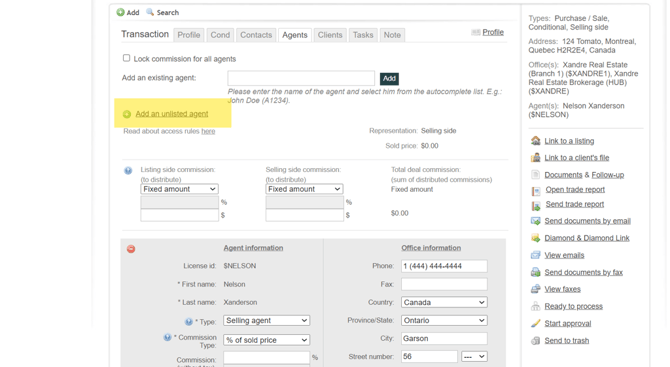
Step 2.
Once you clicked on “Edit” as mentioned above, your screen will look like the example below. You can now click on “Add an unlisted agent”.
Step 3.
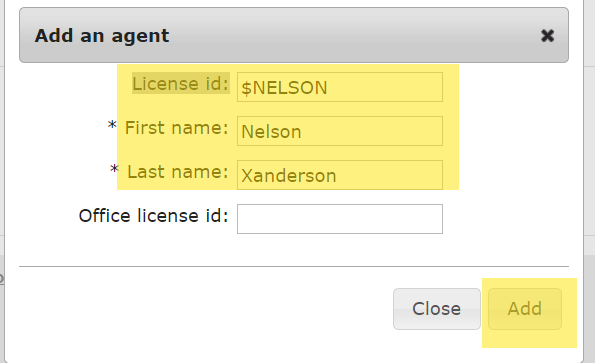
Once you have clicked on “Add an unlisted agent”, the screen shown below will pop up:
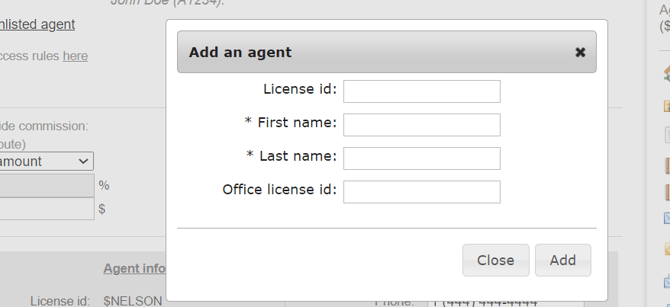
For this you will will need to do an Agent search prior to acquire the Agents “License ID” which is very important. (the reason why this is important is because if you add an agent only with First and Last Name, the Listing or Transaction will not be tied to the Agents profile and probably won't be tied to their office either. The ID is important so the Agent and brokerage admin will have the file attached to their profile.
Shown below is one way to search for an Agent License ID number:
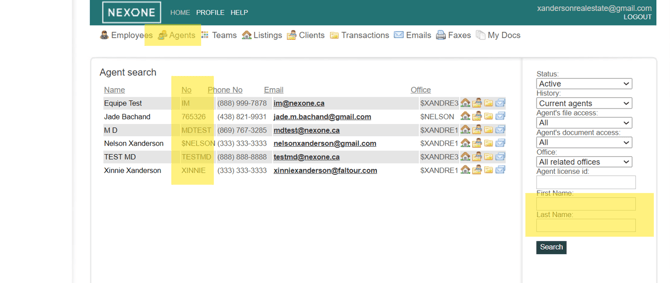
Step 4.
Once you found the Agent ID License you can populate the three fields and click ‘add’
Step 5.
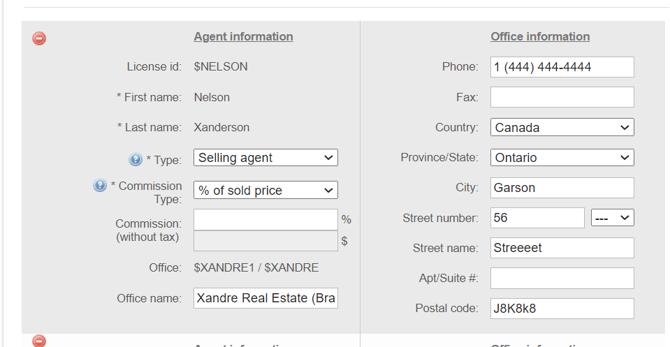
Once you clicked on ‘Add’, the agent will be added. (If the Office name did not populate you can manually type in that info, and since it’s An Agent from your office, it is not necessary to fill out the Office information unless you would like to.)
- [NexOne Agent](https://knowledge.nexone.ca/en-ca/nexone-agent?hsLang=en-ca#main-content)
- [General](https://knowledge.nexone.ca/en-ca/nexone-agent?hsLang=en-ca#general)
- [Accounts & Billings](https://knowledge.nexone.ca/en-ca/nexone-agent?hsLang=en-ca#accounts-billings)
- [Clients](https://knowledge.nexone.ca/en-ca/nexone-agent?hsLang=en-ca#clients)
- [Transactions](https://knowledge.nexone.ca/en-ca/nexone-agent?hsLang=en-ca#transactions)
- [Documents and Forms](https://knowledge.nexone.ca/en-ca/nexone-agent?hsLang=en-ca#documents-and-forms)
- [Electronic Signatures](https://knowledge.nexone.ca/en-ca/nexone-agent?hsLang=en-ca#electronic-signatures)
- [Activities](https://knowledge.nexone.ca/en-ca/nexone-agent?hsLang=en-ca#activities)
- [Calendars and Scheduling](https://knowledge.nexone.ca/en-ca/nexone-agent?hsLang=en-ca#calendars-and-scheduling)
- [Brokerage](https://knowledge.nexone.ca/en-ca/nexone-agent?hsLang=en-ca#brokerage)
- [Teams & Sharing](https://knowledge.nexone.ca/en-ca/nexone-agent?hsLang=en-ca#teams-sharing)
- [Integrations](https://knowledge.nexone.ca/en-ca/nexone-agent?hsLang=en-ca#integrations)
- [Common Trouble Shooting](https://knowledge.nexone.ca/en-ca/nexone-agent?hsLang=en-ca#common-trouble-shooting)
- [what's New?](https://knowledge.nexone.ca/en-ca/nexone-agent?hsLang=en-ca#whats-new)
- [Get a 1-on-1 training](https://knowledge.nexone.ca/en-ca/nexone-agent?hsLang=en-ca#get-a-1-on-1-training)
- [Processing the File for 121QA Service](https://knowledge.nexone.ca/en-ca/nexone-agent?hsLang=en-ca#processing-the-file-for-121qa-service)
- [NexOne Office](https://knowledge.nexone.ca/en-ca/nexone-office?hsLang=en-ca#main-content)
- [Dashboard (New Version)](https://knowledge.nexone.ca/en-ca/nexone-office?hsLang=en-ca#dashboard-new-version)
- [Signature (New Version)](https://knowledge.nexone.ca/en-ca/nexone-office?hsLang=en-ca#signature-new-version)
- [Listings (New Version)](https://knowledge.nexone.ca/en-ca/nexone-office?hsLang=en-ca#listings-new-version)
- [Buyer Agreements (New Version)](https://knowledge.nexone.ca/en-ca/nexone-office?hsLang=en-ca#buyer-agreements-new-version)
- [Transactions (New Version)](https://knowledge.nexone.ca/en-ca/nexone-office?hsLang=en-ca#transactions-new-version)
- [Accounting (Not Updated | Old Version)](https://knowledge.nexone.ca/en-ca/nexone-office?hsLang=en-ca#accounting-not-updated-old-version)
- [Calendar (Not Updated | Old Version)](https://knowledge.nexone.ca/en-ca/nexone-office?hsLang=en-ca#calendar-not-updated-old-version)
- [Dashboard (Not Updated | Old Version)](https://knowledge.nexone.ca/en-ca/nexone-office?hsLang=en-ca#dashboard-not-updated-old-version)
- [Listings (Not Updated | Old Version)](https://knowledge.nexone.ca/en-ca/nexone-office?hsLang=en-ca#listings-not-updated-old-version)
- [Transactions (Not Updated | Old Version)](https://knowledge.nexone.ca/en-ca/nexone-office?hsLang=en-ca#transactions-not-updated-old-version)
- [Alerts (Not Updated | Old Version)](https://knowledge.nexone.ca/en-ca/nexone-office?hsLang=en-ca#alerts-not-updated-old-version)
- [EDM and Signatures (Not Updated | Old Version)](https://knowledge.nexone.ca/en-ca/nexone-office?hsLang=en-ca#edm-and-signatures-not-updated-old-version)
- [Statistics (Not Updated | Old Version)](https://knowledge.nexone.ca/en-ca/nexone-office?hsLang=en-ca#statistics-not-updated-old-version)
- [Contact (Not Updated | Old Version)](https://knowledge.nexone.ca/en-ca/nexone-office?hsLang=en-ca#contact-not-updated-old-version)
- [Communications (Not Updated | Old Version)](https://knowledge.nexone.ca/en-ca/nexone-office?hsLang=en-ca#communications-not-updated-old-version)
- [NexOne Forms (Not Updated | Old Version)](https://knowledge.nexone.ca/en-ca/nexone-office?hsLang=en-ca#nexone-forms-not-updated-old-version)
- [Tips & Tricks (Not Updated | Old Version)](https://knowledge.nexone.ca/en-ca/nexone-office?hsLang=en-ca#tips-tricks-not-updated-old-version)
- [Profile (Not Updated | Old Version)](https://knowledge.nexone.ca/en-ca/nexone-office?hsLang=en-ca#profile-not-updated-old-version)
- [Financial Picture (old version)](https://knowledge.nexone.ca/en-ca/nexone-office?hsLang=en-ca#financial-picture-old-version)
- [NexOne Legend](https://knowledge.nexone.ca/en-ca/nexone-legend?hsLang=en-ca#main-content)
- [General](https://knowledge.nexone.ca/en-ca/nexone-legend?hsLang=en-ca#general)
- [Listings](https://knowledge.nexone.ca/en-ca/nexone-legend?hsLang=en-ca#listings)
- [Clients](https://knowledge.nexone.ca/en-ca/nexone-legend?hsLang=en-ca#clients)
- [Transactions](https://knowledge.nexone.ca/en-ca/nexone-legend?hsLang=en-ca#transactions)
- [Office & Employees](https://knowledge.nexone.ca/en-ca/nexone-legend?hsLang=en-ca#office-employees)
- [Documents & Follow-up](https://knowledge.nexone.ca/en-ca/nexone-legend?hsLang=en-ca#documents-follow-up)
- [Forms](https://knowledge.nexone.ca/en-ca/nexone-legend?hsLang=en-ca#forms)
- [Integrations](https://knowledge.nexone.ca/en-ca/nexone-legend?hsLang=en-ca#integrations)
- [Billing](https://knowledge.nexone.ca/en-ca/nexone-legend?hsLang=en-ca#billing)
- [GoEmail](https://knowledge.nexone.ca/en-ca/nexone-legend?hsLang=en-ca#goemail)
- [Setup](https://knowledge.nexone.ca/en-ca/nexone-legend?hsLang=en-ca#setup)
- [FAQ](https://knowledge.nexone.ca/en-ca/nexone-legend?hsLang=en-ca#faq)
- [Webinar / Ring Central Meeting](https://knowledge.nexone.ca/en-ca/nexone-legend?hsLang=en-ca#webinar-ring-central-meeting)
- [Tips & Tricks](https://knowledge.nexone.ca/en-ca/nexone-legend?hsLang=en-ca#tips-tricks)
- [what's new?](https://knowledge.nexone.ca/en-ca/nexone-legend?hsLang=en-ca#whats-new)
[](https://nexone.ca)
Copyright NexOne Corporation, All rights reserved 2026-2027.
Privacy policy | Cookies