
To begin with, go to www.nexone.ca from your browser and login with your credentials.
A fictitious account is being used for this purpose so as not to tamper with actual real transaction, however, the same steps are applied to both accounts.
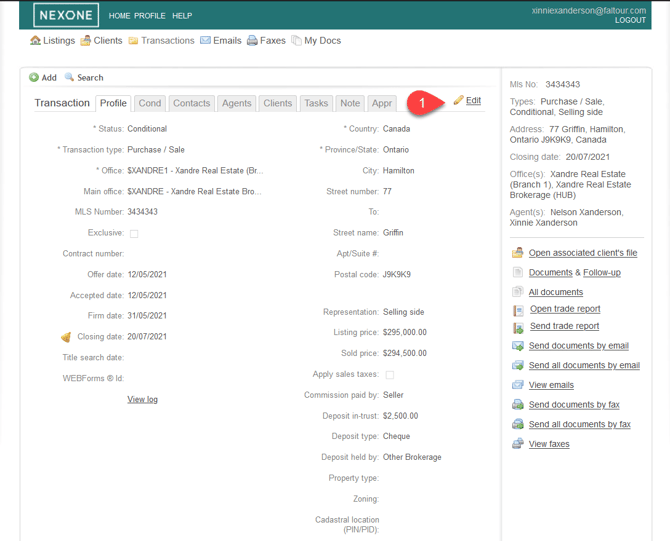
in the transaction tab, after selecting the desired transaction:
- click on edit
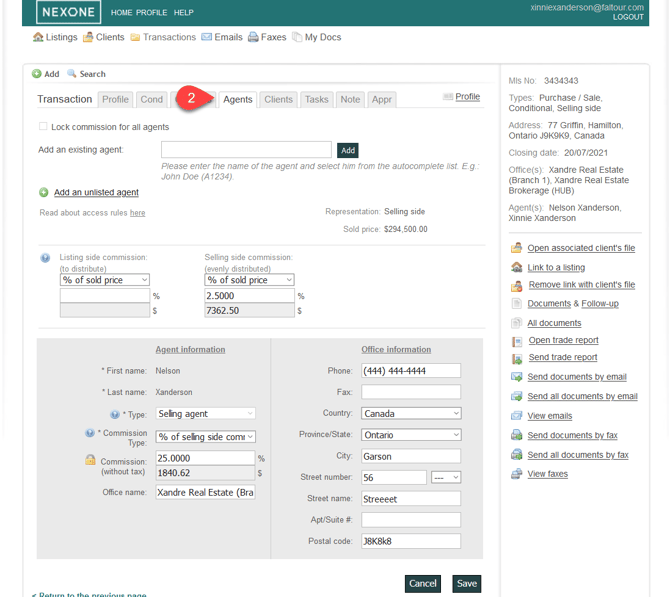
2. select the agent tab
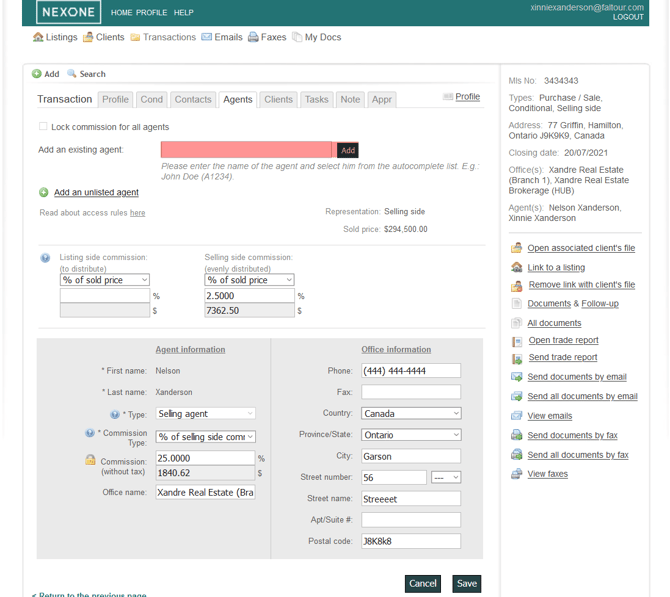
3. Enter the agent name in the designated space and click on add
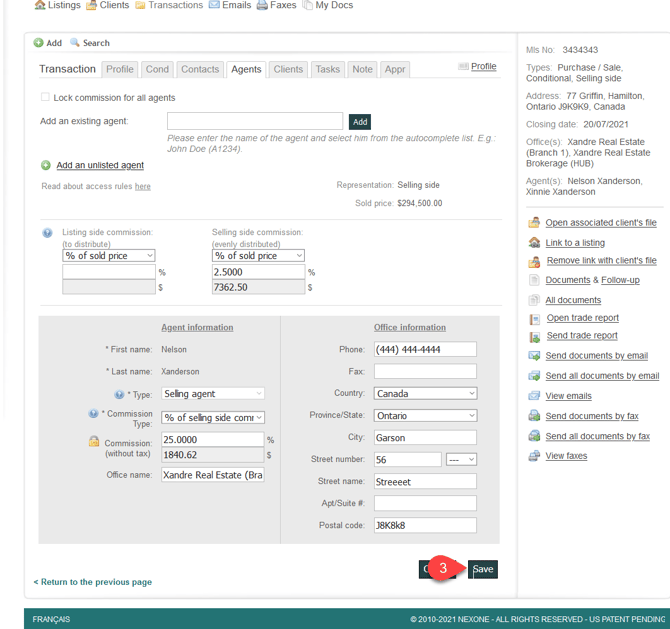
4. Fill in the required fields and save
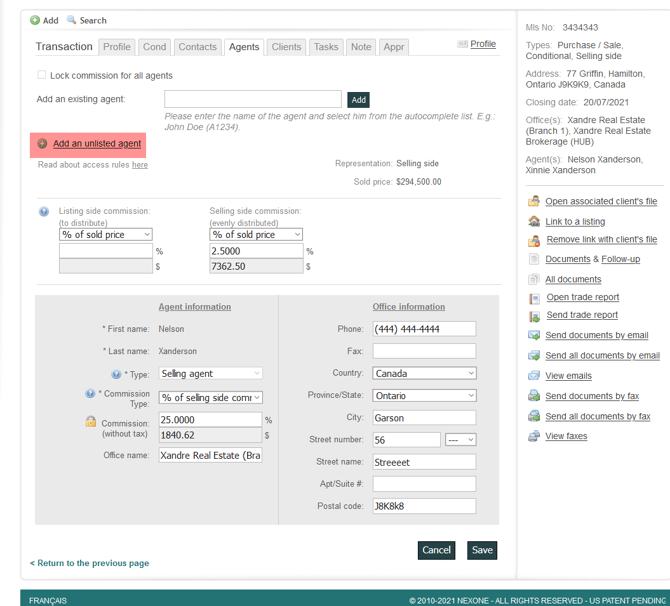
If you cannot find the agent in the list proposed by the system, you can add an unlisted agent by following these steps:
1 - Click on Add an unlisted agent
2- Fill in the require fields and click on Add
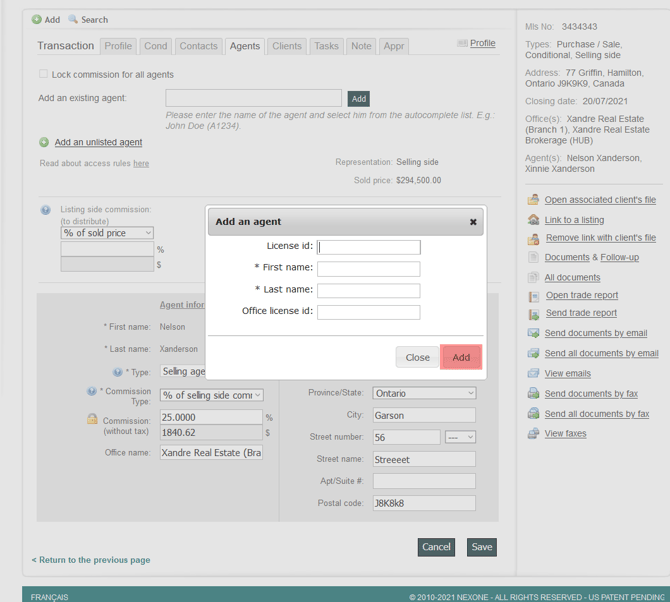
3- Repeat the step 4
Take note that multiple agents can be added to a single transaction.
Once you are done adding an agent ,click on the note`s Tab where you shall see a Save Tab and this is critically important to click on this tab to be able to save the changes that has been applied.