
To add custom clauses for your Brokerage in repree, please follow the instructions below

-
First click on Form Creator. If you do not have this tab, please email support.agent@nexone.ca
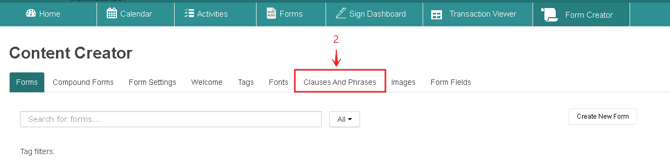
2. Click on the Clauses And Phrases tab.
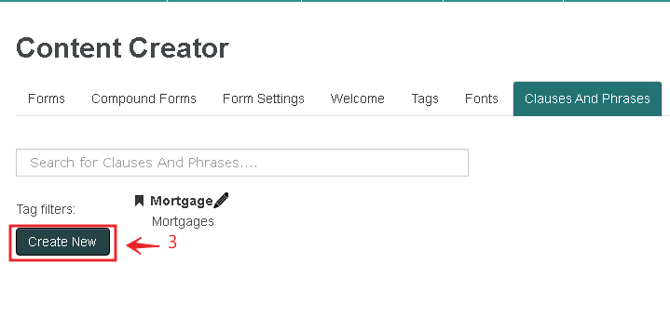
3. Click Create New
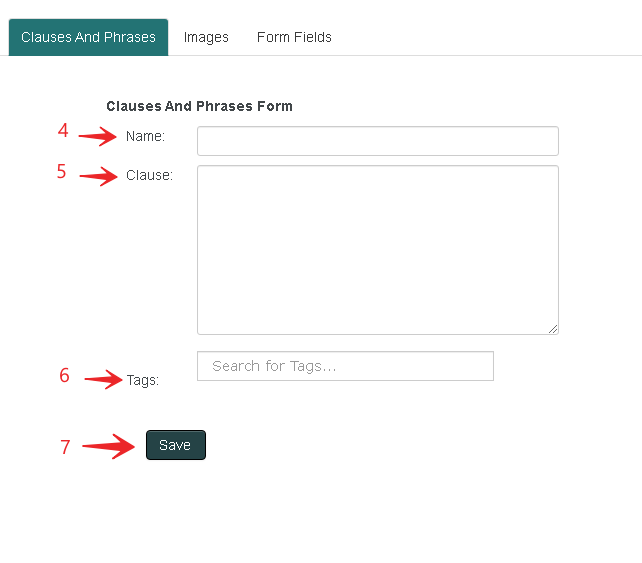
4. Set a title for your clause/phrase
5. write in your custom clause in the clause section,
6. Apply a tag to your clause/phrase for ease of search
7. Click Save
For each Clause/Phrase, you can assign tags to make searching for a Clause/Phrase easier. Follow the instructions below on how to create new tags.
-
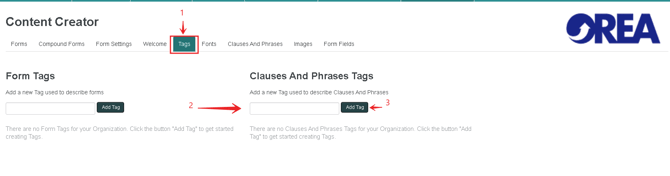
Click on the Tags tab
-
Write in your new tag. Create a tag which is best suited for the clause/phrase you are creating. You can use the same tag for multiple clauses/phrases.
-
Click "Add Tag" to create your new tag. You can color coordinate your new tags as you see fit.