
For an electronic witness and signing session certification you can save and print a Signing Session Certificate. This document will display the signing session events, date/time signed, signer's IP address as well as displaying their signature and documents signed.
-
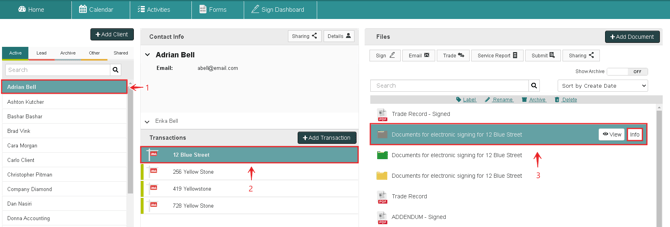
In your NexOne Agent account, select your Client
-
Pick a Transaction
-
Click on your signing session.
-
Select the Info Box to the right of the signing session name.
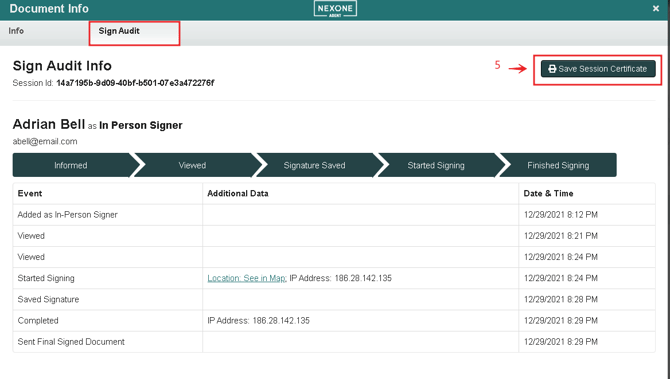
5. Click on Save Session Certificate
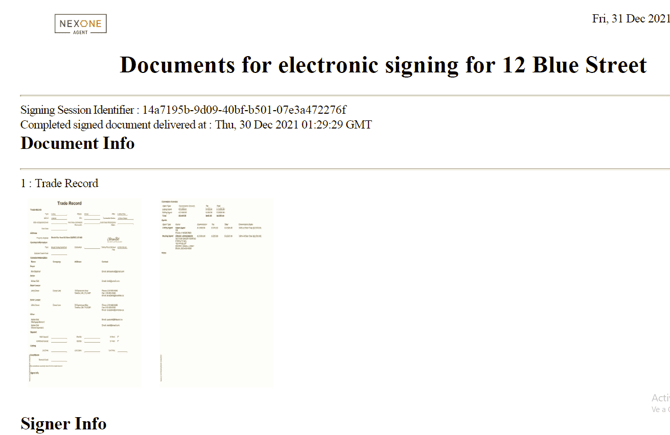
6. The session certificate will download into an new browser window. You can save it to your computer or print from this screen.