---
title: Edit Signing Session in NexOne Sign
description: Edit Signing Session in NexOne Sign
---
[Skip to content](https://knowledge.nexone.ca/en-ca/edit-signing-session-in-nexone-sign#main-content)
English - Canada
Show submenu for translations
[](https://knowledge.nexone.ca/en-ca?hsLang=en-ca)
- [NexOne Agent](https://knowledge.nexone.ca/en-ca/nexone-agent)
- [NexOne Office](https://knowledge.nexone.ca/en-ca/nexone-office)
- [NexOne Legend](https://knowledge.nexone.ca/en-ca/nexone-legend)
Open main navigation
Close main navigation
- [NexOne Agent](https://knowledge.nexone.ca/en-ca/nexone-agent)
- [NexOne Office](https://knowledge.nexone.ca/en-ca/nexone-office)
- [NexOne Legend](https://knowledge.nexone.ca/en-ca/nexone-legend)
- English - Canada
Show submenu for translations
- [Free Webinars](https://nexone.ca/)
[Free Webinars](https://nexone.ca/)
How can we help you?
- There are no suggestions because the search field is empty.
1. [NexOne](https://knowledge.nexone.ca/en-ca?hsLang=en-ca)
2. [NexOne Office](https://knowledge.nexone.ca/en-ca/nexone-office?hsLang=en-ca)
3. [EDM and Signatures (Not Updated | Old Version)](https://knowledge.nexone.ca/en-ca/nexone-office?hsLang=en-ca#edm-and-signatures-not-updated-old-version)
December 30, 2025
# Edit Signing Session in NexOne Sign
***Note: You can edit your signing session only if your clients haven't started signing their documents.***
After having sent your signature request, you are still able to **edit your signing session**.
Open your transaction or listing by clicking on the pencil
Select “**NexOne Sign Log**” at the top of the page
Select Signing session to edit by clicking on the pencil 
If the status is completed, you can’t make any changes to the signing session.
When editing your signature request, you have two choices: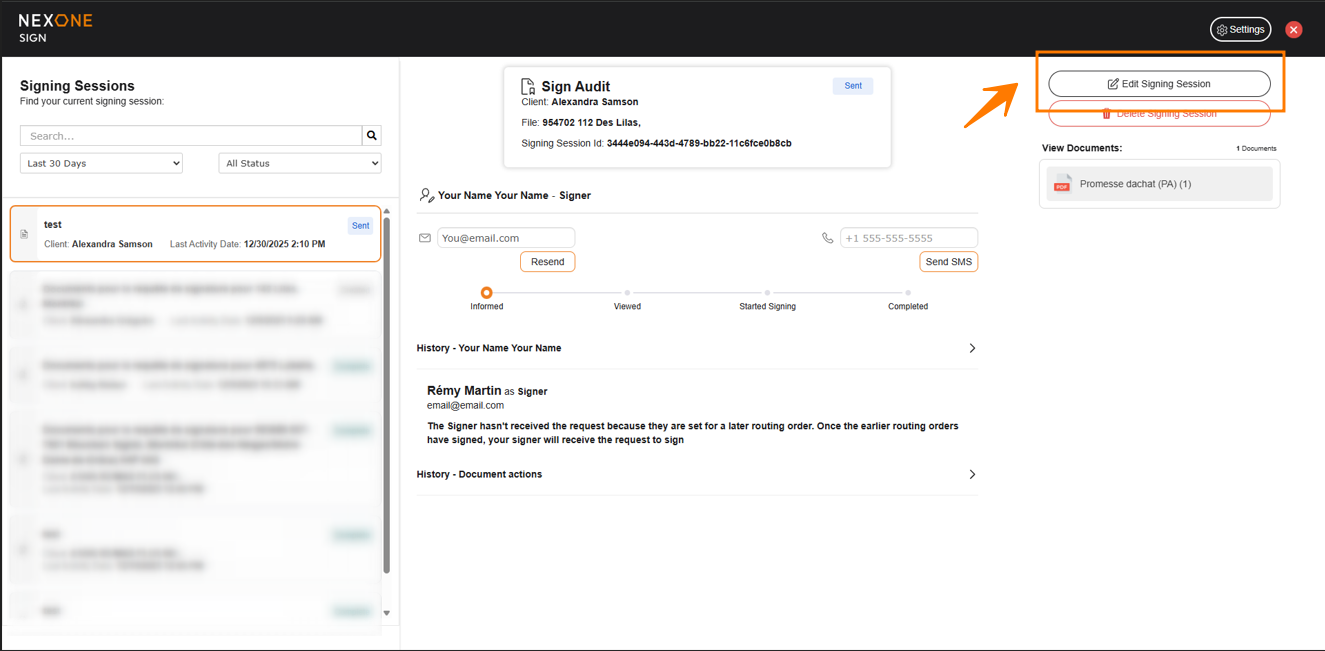
***♦ Edit Signers & Documents***
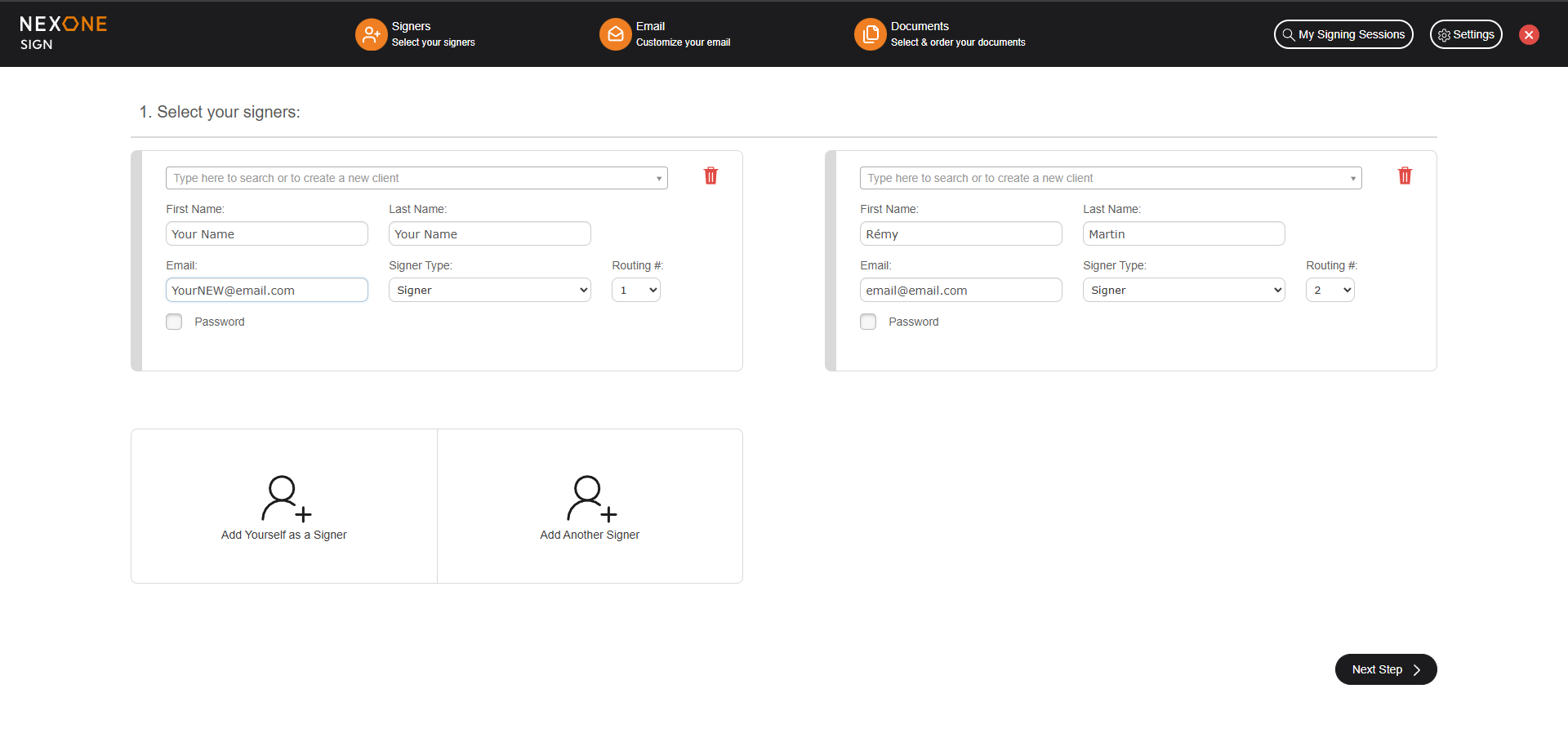
***→** In this section, you will be able to edit your signer’s information: **Add / Remove yourself or your client as a signer**, **edit the Email address**, **Routing #**, **Signer type,** and **Password**. You can also click **Resend** next to your client's email address in order to resend them the signature request.*
***→** You can change edit your signature request **Subject** and **Message.***
***→** Finally, you will be able to edit your documents for signing:*
***Add / Remove documents**, **Add / Remove Auto-Submit** and **Change documents Order**.*
*→* Then Click on **Add documents for signatures**
***♦ Edit Tags***
***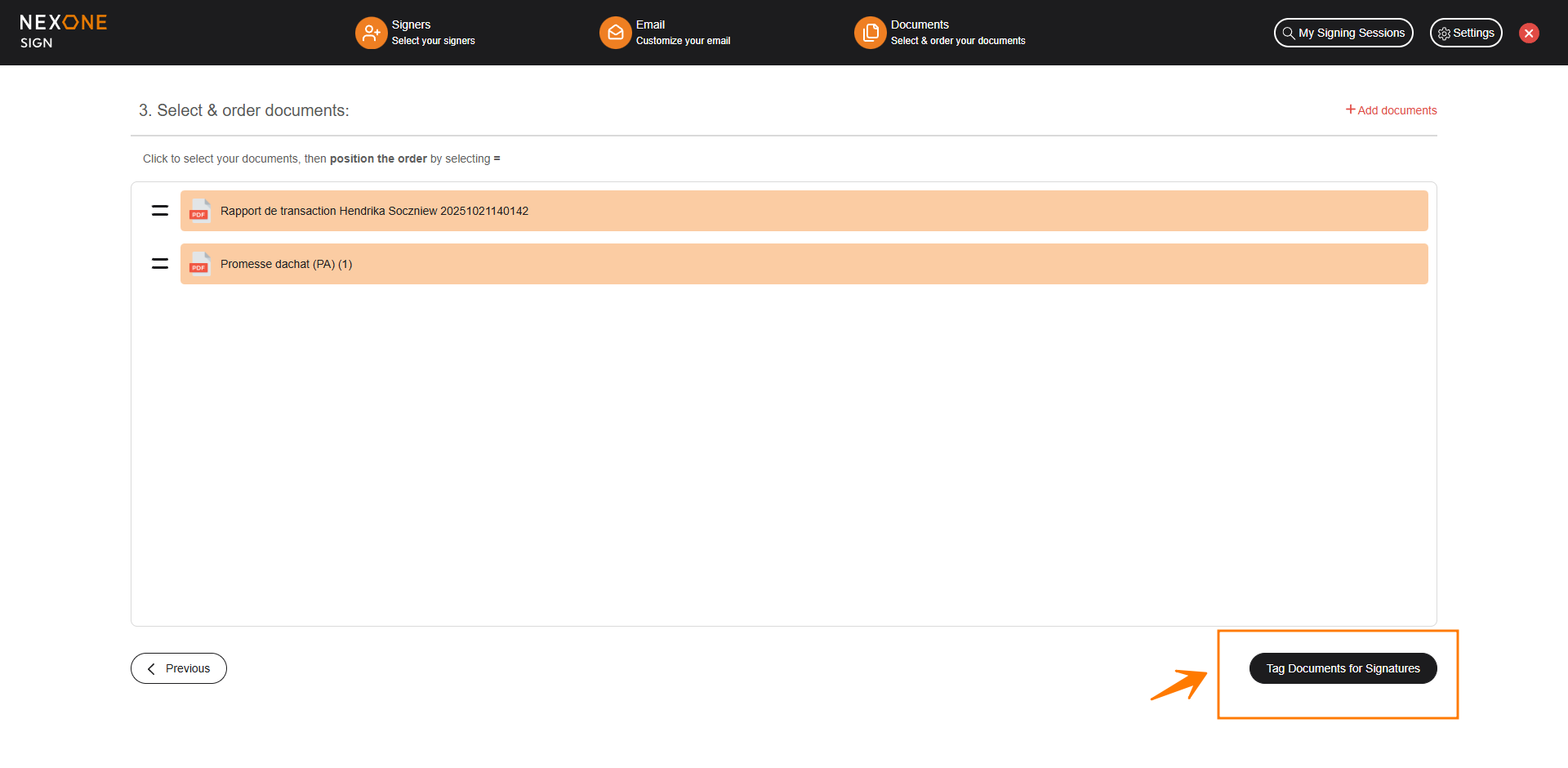***
***→** In this area, you will be able to **Add / Remove** **& edit your Tags**.*
***→*** Then Click on **Send.**
Completed!
- [NexOne Agent](https://knowledge.nexone.ca/en-ca/nexone-agent?hsLang=en-ca#main-content)
- [General](https://knowledge.nexone.ca/en-ca/nexone-agent?hsLang=en-ca#general)
- [Accounts & Billings](https://knowledge.nexone.ca/en-ca/nexone-agent?hsLang=en-ca#accounts-billings)
- [Clients](https://knowledge.nexone.ca/en-ca/nexone-agent?hsLang=en-ca#clients)
- [Transactions](https://knowledge.nexone.ca/en-ca/nexone-agent?hsLang=en-ca#transactions)
- [Documents and Forms](https://knowledge.nexone.ca/en-ca/nexone-agent?hsLang=en-ca#documents-and-forms)
- [Electronic Signatures](https://knowledge.nexone.ca/en-ca/nexone-agent?hsLang=en-ca#electronic-signatures)
- [Activities](https://knowledge.nexone.ca/en-ca/nexone-agent?hsLang=en-ca#activities)
- [Calendars and Scheduling](https://knowledge.nexone.ca/en-ca/nexone-agent?hsLang=en-ca#calendars-and-scheduling)
- [Brokerage](https://knowledge.nexone.ca/en-ca/nexone-agent?hsLang=en-ca#brokerage)
- [Teams & Sharing](https://knowledge.nexone.ca/en-ca/nexone-agent?hsLang=en-ca#teams-sharing)
- [Integrations](https://knowledge.nexone.ca/en-ca/nexone-agent?hsLang=en-ca#integrations)
- [Common Trouble Shooting](https://knowledge.nexone.ca/en-ca/nexone-agent?hsLang=en-ca#common-trouble-shooting)
- [what's New?](https://knowledge.nexone.ca/en-ca/nexone-agent?hsLang=en-ca#whats-new)
- [Get a 1-on-1 training](https://knowledge.nexone.ca/en-ca/nexone-agent?hsLang=en-ca#get-a-1-on-1-training)
- [Processing the File for 121QA Service](https://knowledge.nexone.ca/en-ca/nexone-agent?hsLang=en-ca#processing-the-file-for-121qa-service)
- [NexOne Office](https://knowledge.nexone.ca/en-ca/nexone-office?hsLang=en-ca#main-content)
- [Dashboard (New Version)](https://knowledge.nexone.ca/en-ca/nexone-office?hsLang=en-ca#dashboard-new-version)
- [Signature (New Version)](https://knowledge.nexone.ca/en-ca/nexone-office?hsLang=en-ca#signature-new-version)
- [Listings (New Version)](https://knowledge.nexone.ca/en-ca/nexone-office?hsLang=en-ca#listings-new-version)
- [Buyer Agreements (New Version)](https://knowledge.nexone.ca/en-ca/nexone-office?hsLang=en-ca#buyer-agreements-new-version)
- [Transactions (New Version)](https://knowledge.nexone.ca/en-ca/nexone-office?hsLang=en-ca#transactions-new-version)
- [Accounting (Not Updated | Old Version)](https://knowledge.nexone.ca/en-ca/nexone-office?hsLang=en-ca#accounting-not-updated-old-version)
- [Calendar (Not Updated | Old Version)](https://knowledge.nexone.ca/en-ca/nexone-office?hsLang=en-ca#calendar-not-updated-old-version)
- [Dashboard (Not Updated | Old Version)](https://knowledge.nexone.ca/en-ca/nexone-office?hsLang=en-ca#dashboard-not-updated-old-version)
- [Listings (Not Updated | Old Version)](https://knowledge.nexone.ca/en-ca/nexone-office?hsLang=en-ca#listings-not-updated-old-version)
- [Transactions (Not Updated | Old Version)](https://knowledge.nexone.ca/en-ca/nexone-office?hsLang=en-ca#transactions-not-updated-old-version)
- [Alerts (Not Updated | Old Version)](https://knowledge.nexone.ca/en-ca/nexone-office?hsLang=en-ca#alerts-not-updated-old-version)
- [EDM and Signatures (Not Updated | Old Version)](https://knowledge.nexone.ca/en-ca/nexone-office?hsLang=en-ca#edm-and-signatures-not-updated-old-version)
- [Statistics (Not Updated | Old Version)](https://knowledge.nexone.ca/en-ca/nexone-office?hsLang=en-ca#statistics-not-updated-old-version)
- [Contact (Not Updated | Old Version)](https://knowledge.nexone.ca/en-ca/nexone-office?hsLang=en-ca#contact-not-updated-old-version)
- [Communications (Not Updated | Old Version)](https://knowledge.nexone.ca/en-ca/nexone-office?hsLang=en-ca#communications-not-updated-old-version)
- [NexOne Forms (Not Updated | Old Version)](https://knowledge.nexone.ca/en-ca/nexone-office?hsLang=en-ca#nexone-forms-not-updated-old-version)
- [Tips & Tricks (Not Updated | Old Version)](https://knowledge.nexone.ca/en-ca/nexone-office?hsLang=en-ca#tips-tricks-not-updated-old-version)
- [Profile (Not Updated | Old Version)](https://knowledge.nexone.ca/en-ca/nexone-office?hsLang=en-ca#profile-not-updated-old-version)
- [Financial Picture (old version)](https://knowledge.nexone.ca/en-ca/nexone-office?hsLang=en-ca#financial-picture-old-version)
- [NexOne Legend](https://knowledge.nexone.ca/en-ca/nexone-legend?hsLang=en-ca#main-content)
- [General](https://knowledge.nexone.ca/en-ca/nexone-legend?hsLang=en-ca#general)
- [Listings](https://knowledge.nexone.ca/en-ca/nexone-legend?hsLang=en-ca#listings)
- [Clients](https://knowledge.nexone.ca/en-ca/nexone-legend?hsLang=en-ca#clients)
- [Transactions](https://knowledge.nexone.ca/en-ca/nexone-legend?hsLang=en-ca#transactions)
- [Office & Employees](https://knowledge.nexone.ca/en-ca/nexone-legend?hsLang=en-ca#office-employees)
- [Documents & Follow-up](https://knowledge.nexone.ca/en-ca/nexone-legend?hsLang=en-ca#documents-follow-up)
- [Forms](https://knowledge.nexone.ca/en-ca/nexone-legend?hsLang=en-ca#forms)
- [Integrations](https://knowledge.nexone.ca/en-ca/nexone-legend?hsLang=en-ca#integrations)
- [Billing](https://knowledge.nexone.ca/en-ca/nexone-legend?hsLang=en-ca#billing)
- [GoEmail](https://knowledge.nexone.ca/en-ca/nexone-legend?hsLang=en-ca#goemail)
- [Setup](https://knowledge.nexone.ca/en-ca/nexone-legend?hsLang=en-ca#setup)
- [FAQ](https://knowledge.nexone.ca/en-ca/nexone-legend?hsLang=en-ca#faq)
- [Webinar / Ring Central Meeting](https://knowledge.nexone.ca/en-ca/nexone-legend?hsLang=en-ca#webinar-ring-central-meeting)
- [Tips & Tricks](https://knowledge.nexone.ca/en-ca/nexone-legend?hsLang=en-ca#tips-tricks)
- [what's new?](https://knowledge.nexone.ca/en-ca/nexone-legend?hsLang=en-ca#whats-new)
[](https://nexone.ca)
Copyright NexOne Corporation, All rights reserved 2026-2027.
Privacy policy | Cookies