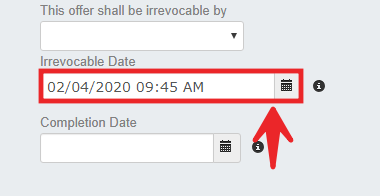
Here is how to use the date and time controls found in Forms and the Calendar. Note that you can change the date and time after the field has been filled in.
1. To open up the date and time controls click on the calendar Icon.

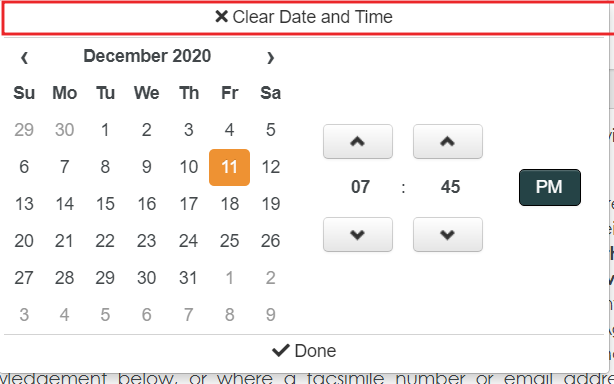
2. Your date/time control module will appear. Select the field required to fill out, it will either display the calendar control, the time control or both.
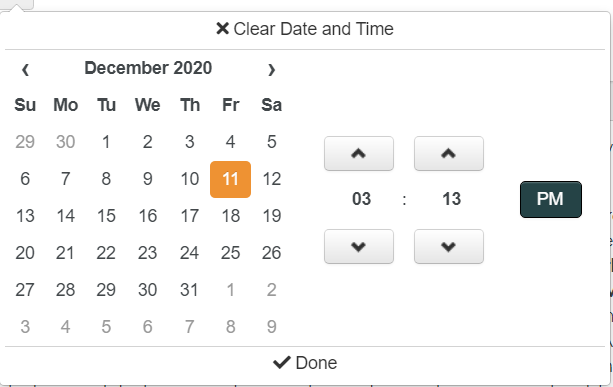
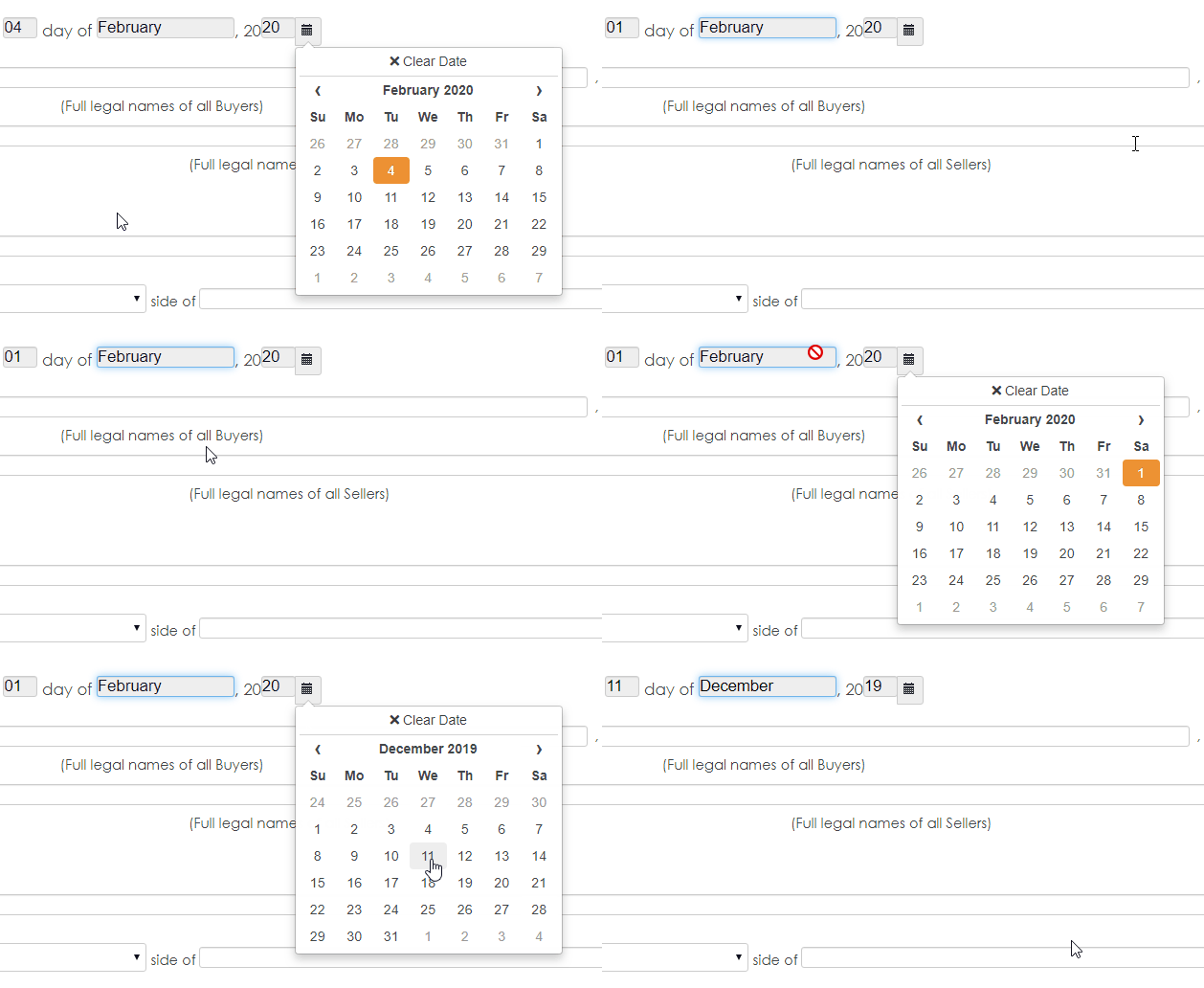
3. To set a date, click on a date in the calendar and it will change automatically.
The control module will remain displayed until you select a date or until you click on Done.
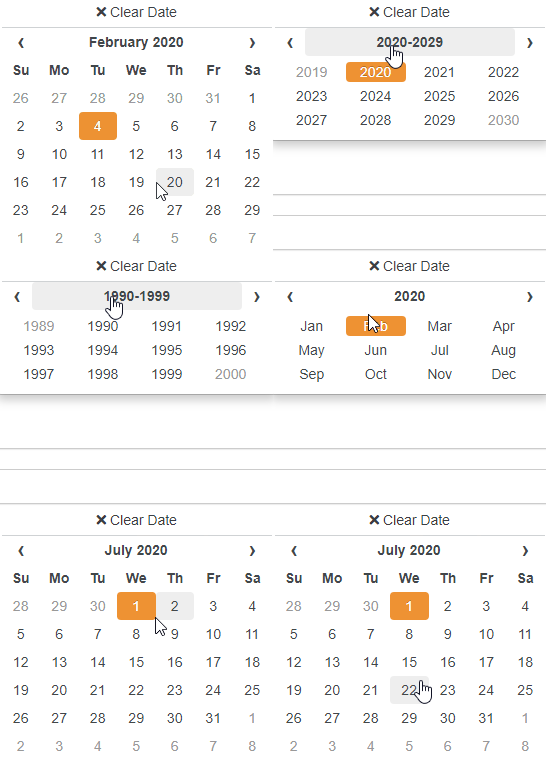
To navigate to an earlier year, click on the "Month/Year" heading at the top to display higher level options. See the gif below for a demo!
4. To set the time, either navigate by clicking the up/down arrows or to save yourself some clicks, click on the numbers directly!
5. Lastly, to clear a date and time, click on the Clear Date and Time option.
You can still clear and edit the date/time field through the field list on the left side section.