---
title: Creating a Listing Kit
description: Creating a Listing Kit
---
[Skip to content](https://knowledge.nexone.ca/en-ca/creating-a-listing-kit#main-content)
English - Canada
Show submenu for translations
[](https://knowledge.nexone.ca/en-ca?hsLang=en-ca)
- [NexOne Agent](https://knowledge.nexone.ca/en-ca/nexone-agent)
- [NexOne Office](https://knowledge.nexone.ca/en-ca/nexone-office)
- [NexOne Legend](https://knowledge.nexone.ca/en-ca/nexone-legend)
Open main navigation
Close main navigation
- [NexOne Agent](https://knowledge.nexone.ca/en-ca/nexone-agent)
- [NexOne Office](https://knowledge.nexone.ca/en-ca/nexone-office)
- [NexOne Legend](https://knowledge.nexone.ca/en-ca/nexone-legend)
- English - Canada
Show submenu for translations
- [Free Webinars](https://nexone.ca/)
[Free Webinars](https://nexone.ca/)
How can we help you?
- There are no suggestions because the search field is empty.
1. [NexOne](https://knowledge.nexone.ca/en-ca?hsLang=en-ca)
2. [NexOne Office](https://knowledge.nexone.ca/en-ca/nexone-office?hsLang=en-ca)
3. [Listings (Not Updated | Old Version)](https://knowledge.nexone.ca/en-ca/nexone-office?hsLang=en-ca#listings-not-updated-old-version)
December 10, 2025
# Creating a Listing Kit
Creating a new **Listing Kit**
Click on the **Kits** section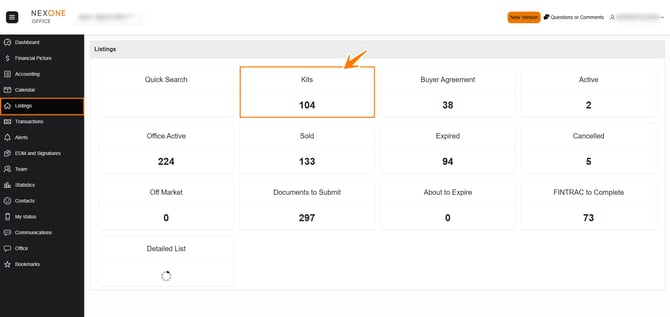
Select **Add a Kit**. 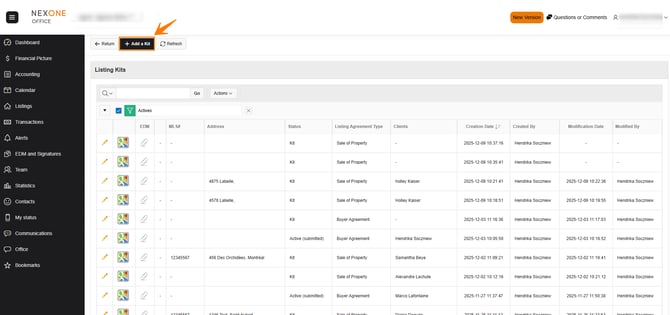
Identify your kit with an address. Only # and street. When available add your MLS, the missing information will be automatically filled in once it is linked to the board feed. The Board sends the information at 6am, noon and 6pm (EST).
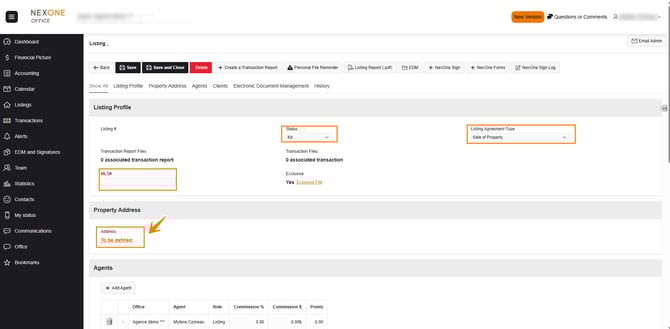
Failure to add your MLS will result in a duplicate file.
Kit is the default status. And, the only status where the file isn't shared with the office.
**Add Client**
Name mismatch between your kit and MLS will result in the system creating a new contact.
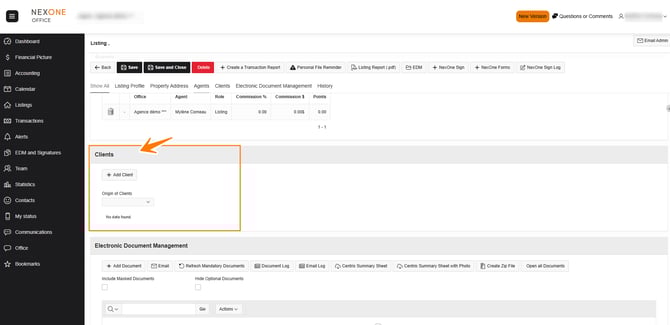
You can add your client manually or import from the CRM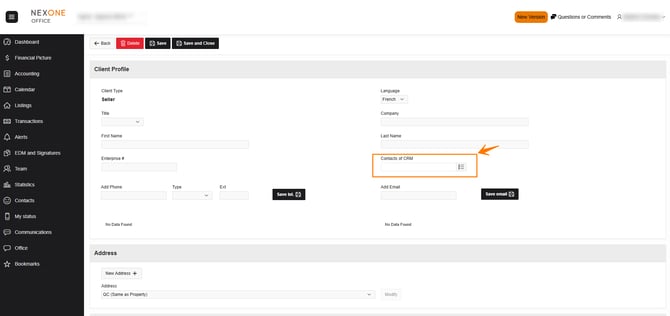
If the client's address is different from the listings, you can add the client's address here.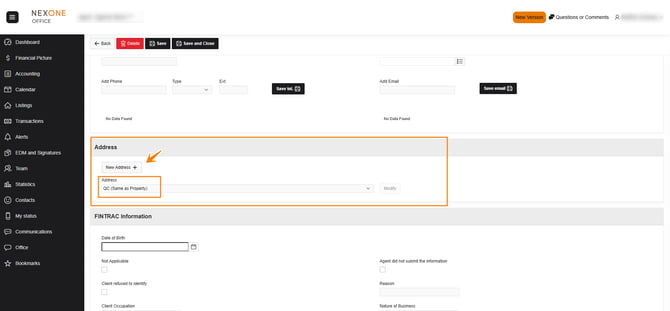
FINTRAC can be filled out here. Any question regarding FINTRAC ? Please contact your office.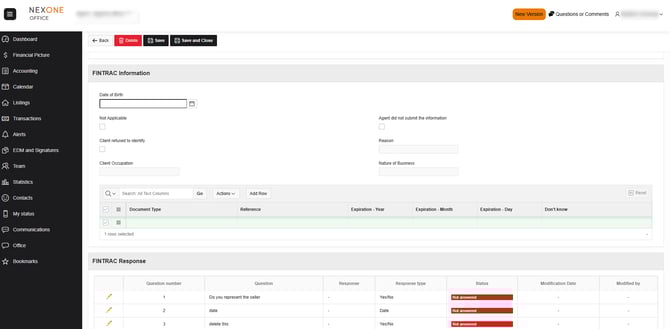
Save to complete the Client’s profile.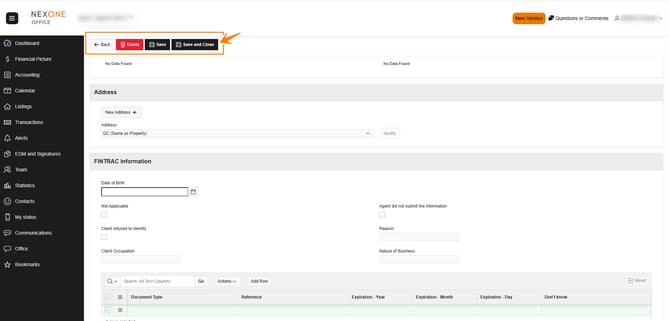
In the electronic document management section, upload the documents required for the listing. Click on Refresh mandatory Documents to see the documents required by your office. Click on +Add Document to upload your documents.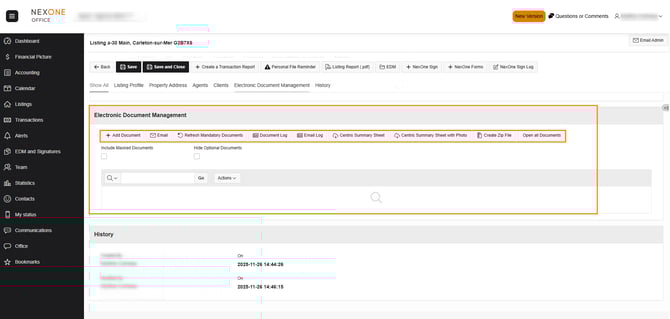
Once all of the information and documents are completed, you can change your status and submit to your office.
Completed!
- [NexOne Agent](https://knowledge.nexone.ca/en-ca/nexone-agent?hsLang=en-ca#main-content)
- [General](https://knowledge.nexone.ca/en-ca/nexone-agent?hsLang=en-ca#general)
- [Accounts & Billings](https://knowledge.nexone.ca/en-ca/nexone-agent?hsLang=en-ca#accounts-billings)
- [Clients](https://knowledge.nexone.ca/en-ca/nexone-agent?hsLang=en-ca#clients)
- [Transactions](https://knowledge.nexone.ca/en-ca/nexone-agent?hsLang=en-ca#transactions)
- [Documents and Forms](https://knowledge.nexone.ca/en-ca/nexone-agent?hsLang=en-ca#documents-and-forms)
- [Electronic Signatures](https://knowledge.nexone.ca/en-ca/nexone-agent?hsLang=en-ca#electronic-signatures)
- [Activities](https://knowledge.nexone.ca/en-ca/nexone-agent?hsLang=en-ca#activities)
- [Calendars and Scheduling](https://knowledge.nexone.ca/en-ca/nexone-agent?hsLang=en-ca#calendars-and-scheduling)
- [Brokerage](https://knowledge.nexone.ca/en-ca/nexone-agent?hsLang=en-ca#brokerage)
- [Teams & Sharing](https://knowledge.nexone.ca/en-ca/nexone-agent?hsLang=en-ca#teams-sharing)
- [Integrations](https://knowledge.nexone.ca/en-ca/nexone-agent?hsLang=en-ca#integrations)
- [Common Trouble Shooting](https://knowledge.nexone.ca/en-ca/nexone-agent?hsLang=en-ca#common-trouble-shooting)
- [what's New?](https://knowledge.nexone.ca/en-ca/nexone-agent?hsLang=en-ca#whats-new)
- [Get a 1-on-1 training](https://knowledge.nexone.ca/en-ca/nexone-agent?hsLang=en-ca#get-a-1-on-1-training)
- [Processing the File for 121QA Service](https://knowledge.nexone.ca/en-ca/nexone-agent?hsLang=en-ca#processing-the-file-for-121qa-service)
- [NexOne Office](https://knowledge.nexone.ca/en-ca/nexone-office?hsLang=en-ca#main-content)
- [Dashboard (New Version)](https://knowledge.nexone.ca/en-ca/nexone-office?hsLang=en-ca#dashboard-new-version)
- [Signature (New Version)](https://knowledge.nexone.ca/en-ca/nexone-office?hsLang=en-ca#signature-new-version)
- [Listings (New Version)](https://knowledge.nexone.ca/en-ca/nexone-office?hsLang=en-ca#listings-new-version)
- [Buyer Agreements (New Version)](https://knowledge.nexone.ca/en-ca/nexone-office?hsLang=en-ca#buyer-agreements-new-version)
- [Transactions (New Version)](https://knowledge.nexone.ca/en-ca/nexone-office?hsLang=en-ca#transactions-new-version)
- [Accounting (Not Updated | Old Version)](https://knowledge.nexone.ca/en-ca/nexone-office?hsLang=en-ca#accounting-not-updated-old-version)
- [Calendar (Not Updated | Old Version)](https://knowledge.nexone.ca/en-ca/nexone-office?hsLang=en-ca#calendar-not-updated-old-version)
- [Dashboard (Not Updated | Old Version)](https://knowledge.nexone.ca/en-ca/nexone-office?hsLang=en-ca#dashboard-not-updated-old-version)
- [Listings (Not Updated | Old Version)](https://knowledge.nexone.ca/en-ca/nexone-office?hsLang=en-ca#listings-not-updated-old-version)
- [Transactions (Not Updated | Old Version)](https://knowledge.nexone.ca/en-ca/nexone-office?hsLang=en-ca#transactions-not-updated-old-version)
- [Alerts (Not Updated | Old Version)](https://knowledge.nexone.ca/en-ca/nexone-office?hsLang=en-ca#alerts-not-updated-old-version)
- [EDM and Signatures (Not Updated | Old Version)](https://knowledge.nexone.ca/en-ca/nexone-office?hsLang=en-ca#edm-and-signatures-not-updated-old-version)
- [Statistics (Not Updated | Old Version)](https://knowledge.nexone.ca/en-ca/nexone-office?hsLang=en-ca#statistics-not-updated-old-version)
- [Contact (Not Updated | Old Version)](https://knowledge.nexone.ca/en-ca/nexone-office?hsLang=en-ca#contact-not-updated-old-version)
- [Communications (Not Updated | Old Version)](https://knowledge.nexone.ca/en-ca/nexone-office?hsLang=en-ca#communications-not-updated-old-version)
- [NexOne Forms (Not Updated | Old Version)](https://knowledge.nexone.ca/en-ca/nexone-office?hsLang=en-ca#nexone-forms-not-updated-old-version)
- [Tips & Tricks (Not Updated | Old Version)](https://knowledge.nexone.ca/en-ca/nexone-office?hsLang=en-ca#tips-tricks-not-updated-old-version)
- [Profile (Not Updated | Old Version)](https://knowledge.nexone.ca/en-ca/nexone-office?hsLang=en-ca#profile-not-updated-old-version)
- [Financial Picture (old version)](https://knowledge.nexone.ca/en-ca/nexone-office?hsLang=en-ca#financial-picture-old-version)
- [NexOne Legend](https://knowledge.nexone.ca/en-ca/nexone-legend?hsLang=en-ca#main-content)
- [General](https://knowledge.nexone.ca/en-ca/nexone-legend?hsLang=en-ca#general)
- [Listings](https://knowledge.nexone.ca/en-ca/nexone-legend?hsLang=en-ca#listings)
- [Clients](https://knowledge.nexone.ca/en-ca/nexone-legend?hsLang=en-ca#clients)
- [Transactions](https://knowledge.nexone.ca/en-ca/nexone-legend?hsLang=en-ca#transactions)
- [Office & Employees](https://knowledge.nexone.ca/en-ca/nexone-legend?hsLang=en-ca#office-employees)
- [Documents & Follow-up](https://knowledge.nexone.ca/en-ca/nexone-legend?hsLang=en-ca#documents-follow-up)
- [Forms](https://knowledge.nexone.ca/en-ca/nexone-legend?hsLang=en-ca#forms)
- [Integrations](https://knowledge.nexone.ca/en-ca/nexone-legend?hsLang=en-ca#integrations)
- [Billing](https://knowledge.nexone.ca/en-ca/nexone-legend?hsLang=en-ca#billing)
- [GoEmail](https://knowledge.nexone.ca/en-ca/nexone-legend?hsLang=en-ca#goemail)
- [Setup](https://knowledge.nexone.ca/en-ca/nexone-legend?hsLang=en-ca#setup)
- [FAQ](https://knowledge.nexone.ca/en-ca/nexone-legend?hsLang=en-ca#faq)
- [Webinar / Ring Central Meeting](https://knowledge.nexone.ca/en-ca/nexone-legend?hsLang=en-ca#webinar-ring-central-meeting)
- [Tips & Tricks](https://knowledge.nexone.ca/en-ca/nexone-legend?hsLang=en-ca#tips-tricks)
- [what's new?](https://knowledge.nexone.ca/en-ca/nexone-legend?hsLang=en-ca#whats-new)
[](https://nexone.ca)
Copyright NexOne Corporation, All rights reserved 2026-2027.
Privacy policy | Cookies