
Creating groups of forms will help you save time and customize your workflow.
In your file go to the "NexOne Forms".

Select New Form view on the right. Click on the forms that you would like to add to your group. All the forms that you select will appear on the left hand side. To remove one of the selected forms click the X next to the name in the left hand list. When the forms have been selected, click on Create/Add to Group.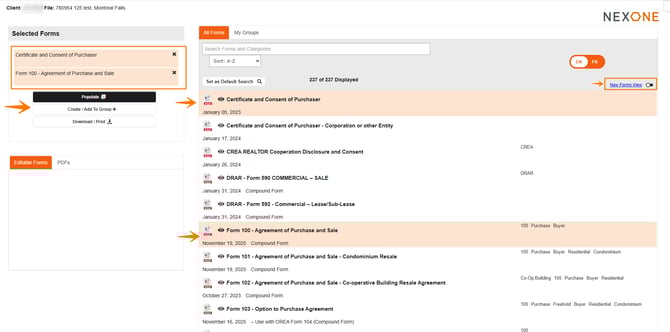
After Selecting this tab, a new window will appear.
Give your form group a name
Review the selected forms. (You can click and drag the forms into a specific order.)
You also have the option to add these documents to an existing group
Select Create
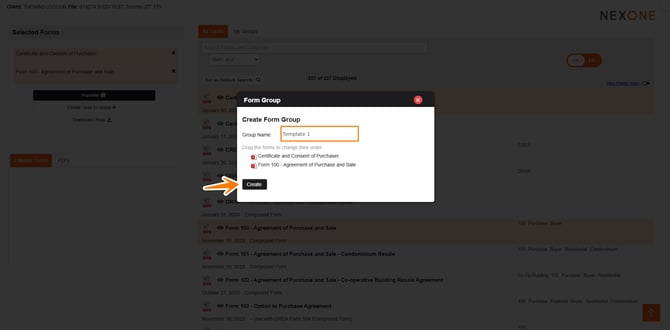
Adding and removing Form Groups
After making your selection, you will be brought back to the forms section. To view the groups, select “My Groups” and you will be redirected to your groups section.
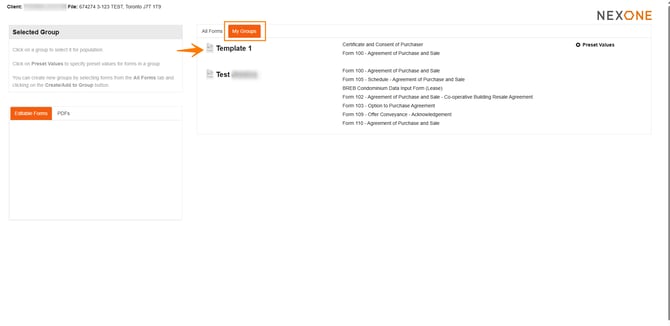
Once in the groups section, you will be able to view your groups and their related forms. You can select the group and edit the forms or select populate which will allow you to begin filling them out! 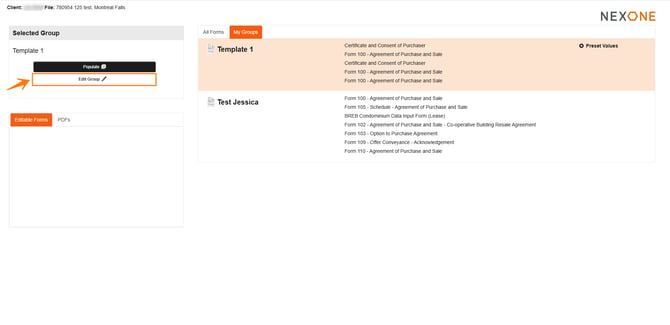
Edit Group will open the following window, you can delete the group or specific forms.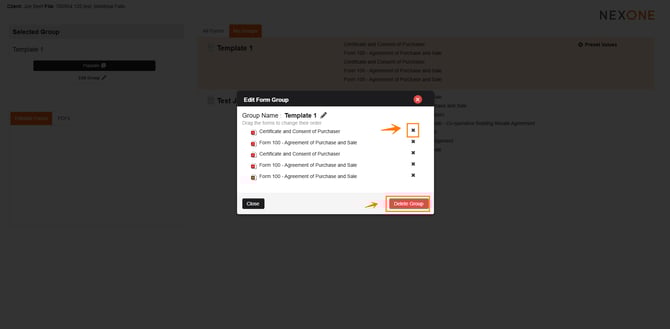
Preset Values
If you select “Preset Values” to the right of the form group, you will be prompted to fill out the forms. Any information you enter via Preset Values will auto-fill each time you populate from that group.
WARNING: If the preset value is selected for a section that is auto-populated from the board or Geowarehouse, the preset value will override the auto-populated data.
Completed!