---
title: "Brokerage Billing: Update billing information, adding liscences."
description: "Brokerage Billing: Update billing information, adding liscences."
---
[Skip to content](https://knowledge.nexone.ca/en-ca/brokerage-billing-update-billing-information-adding-liscences#main-content)
English - Canada
Show submenu for translations
[](https://knowledge.nexone.ca/en-ca?hsLang=en-ca)
- [NexOne Agent](https://knowledge.nexone.ca/en-ca/nexone-agent)
- [NexOne Office](https://knowledge.nexone.ca/en-ca/nexone-office)
- [NexOne Legend](https://knowledge.nexone.ca/en-ca/nexone-legend)
Open main navigation
Close main navigation
- [NexOne Agent](https://knowledge.nexone.ca/en-ca/nexone-agent)
- [NexOne Office](https://knowledge.nexone.ca/en-ca/nexone-office)
- [NexOne Legend](https://knowledge.nexone.ca/en-ca/nexone-legend)
- English - Canada
Show submenu for translations
- [Free Webinars](https://nexone.ca/)
[Free Webinars](https://nexone.ca/)
How can we help you?
- There are no suggestions because the search field is empty.
1. [NexOne](https://knowledge.nexone.ca/en-ca?hsLang=en-ca)
2. [NexOne Agent](https://knowledge.nexone.ca/en-ca/nexone-agent?hsLang=en-ca)
3. [Brokerage](https://knowledge.nexone.ca/en-ca/nexone-agent?hsLang=en-ca#brokerage)
December 23, 2025
# Brokerage Billing: Update billing information, adding liscences.
Update the Billing Information for your Brokerage account by following the instructions below!
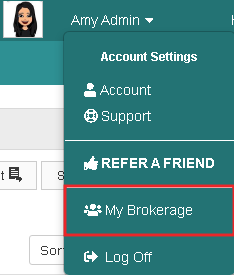
1. Click the “My Brokerage” button to enter your brokerage admin portal.
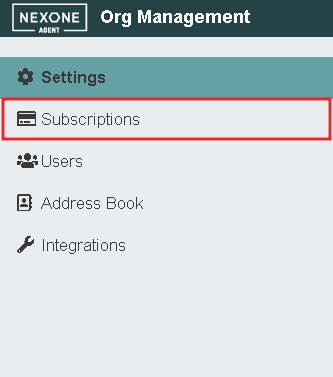

2\. Enter “Subscriptions”
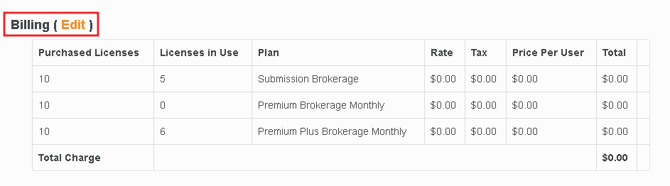

3\. Here is an overview of your license count and billing breakdown. You can control your license count and update your billing information by clicking the **Edit** button.
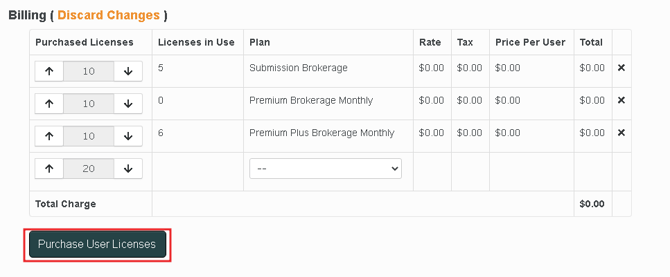
4\. Once you expand the billing edit, click on “Purchase User Licenses”
Clicking on **Purchase User Licenses** does not add/subtract charges to your account unless the license count is changed.
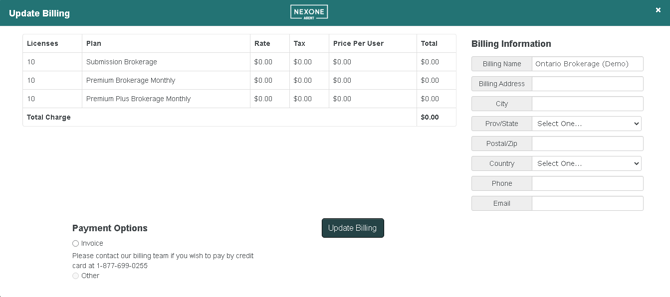

5\. Here is where you will update your Billing information. Choose to receive an **invoice** or **pay by credit card**.
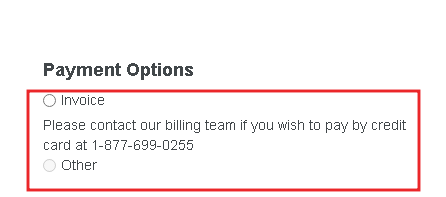

6\. To update your credit card information, uncheck the “Credit Card file” option.
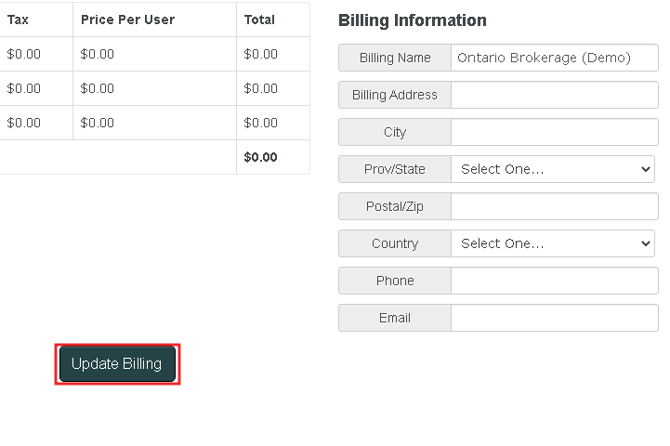

7\. Once you are finished, click “Update Billing”
- [NexOne Agent](https://knowledge.nexone.ca/en-ca/nexone-agent?hsLang=en-ca#main-content)
- [General](https://knowledge.nexone.ca/en-ca/nexone-agent?hsLang=en-ca#general)
- [Accounts & Billings](https://knowledge.nexone.ca/en-ca/nexone-agent?hsLang=en-ca#accounts-billings)
- [Clients](https://knowledge.nexone.ca/en-ca/nexone-agent?hsLang=en-ca#clients)
- [Transactions](https://knowledge.nexone.ca/en-ca/nexone-agent?hsLang=en-ca#transactions)
- [Documents and Forms](https://knowledge.nexone.ca/en-ca/nexone-agent?hsLang=en-ca#documents-and-forms)
- [Electronic Signatures](https://knowledge.nexone.ca/en-ca/nexone-agent?hsLang=en-ca#electronic-signatures)
- [Activities](https://knowledge.nexone.ca/en-ca/nexone-agent?hsLang=en-ca#activities)
- [Calendars and Scheduling](https://knowledge.nexone.ca/en-ca/nexone-agent?hsLang=en-ca#calendars-and-scheduling)
- [Brokerage](https://knowledge.nexone.ca/en-ca/nexone-agent?hsLang=en-ca#brokerage)
- [Teams & Sharing](https://knowledge.nexone.ca/en-ca/nexone-agent?hsLang=en-ca#teams-sharing)
- [Integrations](https://knowledge.nexone.ca/en-ca/nexone-agent?hsLang=en-ca#integrations)
- [Common Trouble Shooting](https://knowledge.nexone.ca/en-ca/nexone-agent?hsLang=en-ca#common-trouble-shooting)
- [what's New?](https://knowledge.nexone.ca/en-ca/nexone-agent?hsLang=en-ca#whats-new)
- [Get a 1-on-1 training](https://knowledge.nexone.ca/en-ca/nexone-agent?hsLang=en-ca#get-a-1-on-1-training)
- [Processing the File for 121QA Service](https://knowledge.nexone.ca/en-ca/nexone-agent?hsLang=en-ca#processing-the-file-for-121qa-service)
- [NexOne Office](https://knowledge.nexone.ca/en-ca/nexone-office?hsLang=en-ca#main-content)
- [Dashboard (New Version)](https://knowledge.nexone.ca/en-ca/nexone-office?hsLang=en-ca#dashboard-new-version)
- [Signature (New Version)](https://knowledge.nexone.ca/en-ca/nexone-office?hsLang=en-ca#signature-new-version)
- [Listings (New Version)](https://knowledge.nexone.ca/en-ca/nexone-office?hsLang=en-ca#listings-new-version)
- [Buyer Agreements (New Version)](https://knowledge.nexone.ca/en-ca/nexone-office?hsLang=en-ca#buyer-agreements-new-version)
- [Transactions (New Version)](https://knowledge.nexone.ca/en-ca/nexone-office?hsLang=en-ca#transactions-new-version)
- [Accounting (Not Updated | Old Version)](https://knowledge.nexone.ca/en-ca/nexone-office?hsLang=en-ca#accounting-not-updated-old-version)
- [Calendar (Not Updated | Old Version)](https://knowledge.nexone.ca/en-ca/nexone-office?hsLang=en-ca#calendar-not-updated-old-version)
- [Dashboard (Not Updated | Old Version)](https://knowledge.nexone.ca/en-ca/nexone-office?hsLang=en-ca#dashboard-not-updated-old-version)
- [Listings (Not Updated | Old Version)](https://knowledge.nexone.ca/en-ca/nexone-office?hsLang=en-ca#listings-not-updated-old-version)
- [Transactions (Not Updated | Old Version)](https://knowledge.nexone.ca/en-ca/nexone-office?hsLang=en-ca#transactions-not-updated-old-version)
- [Alerts (Not Updated | Old Version)](https://knowledge.nexone.ca/en-ca/nexone-office?hsLang=en-ca#alerts-not-updated-old-version)
- [EDM and Signatures (Not Updated | Old Version)](https://knowledge.nexone.ca/en-ca/nexone-office?hsLang=en-ca#edm-and-signatures-not-updated-old-version)
- [Statistics (Not Updated | Old Version)](https://knowledge.nexone.ca/en-ca/nexone-office?hsLang=en-ca#statistics-not-updated-old-version)
- [Contact (Not Updated | Old Version)](https://knowledge.nexone.ca/en-ca/nexone-office?hsLang=en-ca#contact-not-updated-old-version)
- [Communications (Not Updated | Old Version)](https://knowledge.nexone.ca/en-ca/nexone-office?hsLang=en-ca#communications-not-updated-old-version)
- [NexOne Forms (Not Updated | Old Version)](https://knowledge.nexone.ca/en-ca/nexone-office?hsLang=en-ca#nexone-forms-not-updated-old-version)
- [Tips & Tricks (Not Updated | Old Version)](https://knowledge.nexone.ca/en-ca/nexone-office?hsLang=en-ca#tips-tricks-not-updated-old-version)
- [Profile (Not Updated | Old Version)](https://knowledge.nexone.ca/en-ca/nexone-office?hsLang=en-ca#profile-not-updated-old-version)
- [Financial Picture (old version)](https://knowledge.nexone.ca/en-ca/nexone-office?hsLang=en-ca#financial-picture-old-version)
- [NexOne Legend](https://knowledge.nexone.ca/en-ca/nexone-legend?hsLang=en-ca#main-content)
- [General](https://knowledge.nexone.ca/en-ca/nexone-legend?hsLang=en-ca#general)
- [Listings](https://knowledge.nexone.ca/en-ca/nexone-legend?hsLang=en-ca#listings)
- [Clients](https://knowledge.nexone.ca/en-ca/nexone-legend?hsLang=en-ca#clients)
- [Transactions](https://knowledge.nexone.ca/en-ca/nexone-legend?hsLang=en-ca#transactions)
- [Office & Employees](https://knowledge.nexone.ca/en-ca/nexone-legend?hsLang=en-ca#office-employees)
- [Documents & Follow-up](https://knowledge.nexone.ca/en-ca/nexone-legend?hsLang=en-ca#documents-follow-up)
- [Forms](https://knowledge.nexone.ca/en-ca/nexone-legend?hsLang=en-ca#forms)
- [Integrations](https://knowledge.nexone.ca/en-ca/nexone-legend?hsLang=en-ca#integrations)
- [Billing](https://knowledge.nexone.ca/en-ca/nexone-legend?hsLang=en-ca#billing)
- [GoEmail](https://knowledge.nexone.ca/en-ca/nexone-legend?hsLang=en-ca#goemail)
- [Setup](https://knowledge.nexone.ca/en-ca/nexone-legend?hsLang=en-ca#setup)
- [FAQ](https://knowledge.nexone.ca/en-ca/nexone-legend?hsLang=en-ca#faq)
- [Webinar / Ring Central Meeting](https://knowledge.nexone.ca/en-ca/nexone-legend?hsLang=en-ca#webinar-ring-central-meeting)
- [Tips & Tricks](https://knowledge.nexone.ca/en-ca/nexone-legend?hsLang=en-ca#tips-tricks)
- [what's new?](https://knowledge.nexone.ca/en-ca/nexone-legend?hsLang=en-ca#whats-new)
[](https://nexone.ca)
Copyright NexOne Corporation, All rights reserved 2026-2027.
Privacy policy | Cookies